
Linux Settings of Two Touch Monitors
2026/03/26 |By G Editor
As Linux distributions now adopt the Wayland graphics protocol by default, most desktop environments currently cooperated with Debian 13 (Trixie) also use Wayland by default. The system settings interfaces of these desktops can now correctly detect and configure a single touchscreen well. For example, the GNOME, Plasma, Ubuntu, and Raspberry Pi desktops can all correctly detect a touch monitor and quickly adjust the resolution and display orientation within the display settings, providing plug-and-play convenience. 【For detailed setup instructions, see: Linux – Touchscreen Setup】
However, when connecting “two” touchscreens simultaneously, users will find that the touch response positions are incorrect in extended display mode. This is because Wayland’s support for dual-screen touch input is not yet fully developed. If you need to connect and use two extended touch monitors on a Linux system, we recommend the following three solutions.
1. Use Plasma Desktop
The Plasma Desktop provides a good UI for system settings including display settings and touchscreen settings, which is the easiest way to set up two touch monitors in Linux. The followings show how to set up two touch monitors with the same device name on Plasma Desktop.
🔵 Step 1. Display Settings
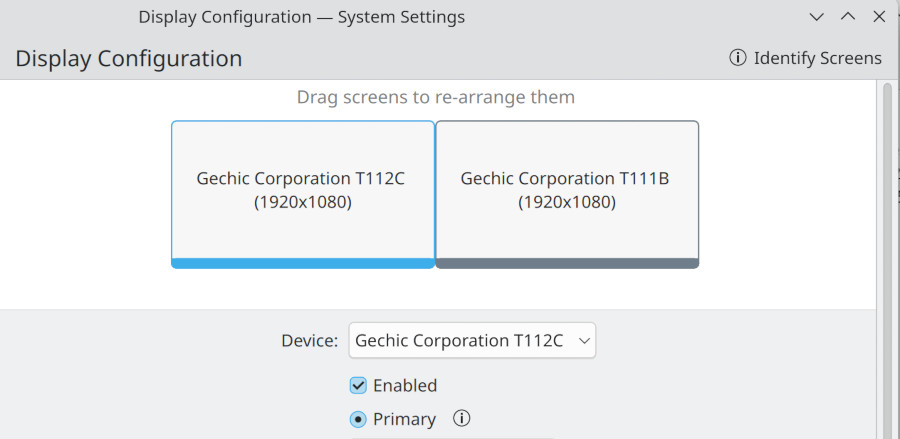
Click “System Settings” icon ➜ arrange the resolution and location of displays. For illustration, we use T112C touch monitor as the main display and T111B touch monitor as the extended display on the right.

🔵 Step 2. Touchscreen Settings (Touchscreen)
Click “Touchscreen” ➜ You will find two touchscreens within "Device" menu.
【Note: All the Gechic touch monitors are named as "ILITEK ILTEK-TP "】
① Select the FIRST “ILITEK ILITEK-TP ” within the Device menu.

② Check Enabled and choose one Monitor within the Target Display menu (In this example, we slect T112C first) ➜ Click “ Apply”.


③ Click Device menu again to select the SECOND “ILITEK ILITEK-TP ” and Uncheck Enabled to disable the second touch input. ➜ Click “ Apply”.

④ Tap on T112C to draw a square. If the square appears on T112C, the mapping of the first ILITEK device is correct. Otherwise, change the Target display to another one item-T111B.
⑤ After confirming the first ILITEK device, you may enable the second ILITEK device and set it to the other monitor in the Target display menu.
🛎️Note:
1) The resolutions showed in the target display menu were wrong, but they won’t affect the mapping.
2) The touchscreen setting will not last after rebooting. Therefore, you need to repeat the settings again after system boot.
2. Use xinput map-to-output Command
Because Wayland's support for touch input in extended dual-screen mode is not yet complete, desktops such as Gnome, Ubuntu, and Raspberry Pi can only configure one monitor as the touch input device in extended display mode. Therefore, we shall disable Wayland and use the X11 environment instead, using the `xinput map-to-output` command to specify the mapping position of the two touch monitors.
🔵 Step 1. Enable X11
The specific steps for disabling the existing Wayland desktop and enabling X11 vary depending on your desktop system. In this example, we'll start with the default desktop of Raspberry Pi OS (64-bit Trixie) and explain how to install and enable the Plasma desktop (X11).
Input sudo apt install tasksel command to install tasksel. After the installation, input tasksel to run the program.

Select KDE Plasma ➜ press "Tab' button to switch to the bottom➜ press [OK] to confirm.
After installation and system restart, select "Plasma X11" as the login option in the bottom-left menu.


🔵 Step 2. Find the Device IDs of Touch Monitors
Open "Terminal" and input xinput list command to find out the Device IDs of ILITEK-TP . In this example, we got ID 8 and 9.

🔵 Step 3. Find the Names of Displays
Input xrandr command to find out the display names. In this example we got HDMI-1 and HDMI-2.
【Note: The Display area of HDMI-2 is shown as 1920x1080+1920+0, which means its display area starts from 1920, Therefore, HDMI-2 is the one put on the right (T111B ) 】

🔵 Step 4. Use map-to-output for Touch Mapping
The `xinput map-to-output` command can map the input device to the display area. Since the two touch monitors have the same name, it is impossible to distinguish which input device 8 and device 9 represent. An experimental method can be used to set this up:
First enter the command xinput map-to-output 8 HDMI-1 , then click T112C. If the touch response is correct, it means that device 8 is indeed the left main display T112C. Next, enter the command xinput map-to-output 9 HDMI-2 to map device 9 to T111B; Otherwise, the device ID shall be changed.。

🛎️Note:
1) Both touch monitors work fine after executing map-to-output command.
2) The touchscreen device IDs may change after rebooting. Therefore, you may need to repeat the settings again after system boot.
3. Set xinput map-to-output Auto-Run
Because input device IDs are not fixed values, for one touchscreen scenario, we can use the device name "ILITEK ILITEK-TP " to set the touch mapping 【For details, please read: Linux – Touchscreen Settings 】. However, when connecting two touch monitors with the same name, the input source cannot be identified by the device name anymore.
To distinguish between different touch input devices, we shall fix their USB ports and use the USB path for identification. This can be supplemented by an automated script finding the device ID based on the input path and set its mapping region each time the system boots.
🔵 Step 1. Find the Device Nodes of Touch Monitors
After obtaining the device IDs of the touch monitors (8 and 9 in this example), use the "xinput list-props" command to list the properties of the input devices. Then, find their device nodes in the properties—in this example, /dev/input/event8 and /dev/input/event0.
Enter xinput list-props 8 ➜ Find its Device Node as /dev/input/event8
Enter xinput list-props 9 ➜ Find its Device Node as /dev/input/event0


🔵 Step 2. Find the USB Paths of Touch Monitors
Based on the Device Nodes obtained in Step 1, use the udevadm info command to list the details. Locate the USB path of the touch input device and select a string within that path that is sufficient to identify the touch monitor, such as "3-1:1.0" and "3-2.2:1.0". 【 Note: The selected strings depend on your system environment! Please define the path strings according to your specific situation.】
Enter udevinfo /dev/input/event8 ➜ Select the string "3-1:1.0"
Enter udevinfo /dev/input/event0 ➜ Select the string "3-2.2:1.0"


🔵 Step 3. Write an Auto-Mapping Script
Enter the following command to create a script named touch.sh
sudo nano ~/.config/touch.sh
Enter the following code into the file. This script will locate the ILITEK-TP device ID and set the mapping display based on the USB path. 【Note: You can download the Zip file at the end of this post to obtain the touch.sh file】.

🛎️Note:
1) Remember to use the command sudo chmod +x to set the file executable
sudo chmod +x ~/.config/touch.sh
2) Remember to modify touch.sh based on your situation!The values inside the red columns are variable. Please modify them by yourself.

🔵 Step 4. Write an Auto-Run Desktop App
To make touch.sh executed automatically, you need to add an AutoStart application on Plasma desktop. Use the following command to create a touch.desktop 【PS.You can find touch.desktop inside the Zip file.】
sudo nano ~/.config/autostart/touch.desktop


Make sure the file is executable:
sudo chmod +x ~/.config/autostart/touch.desktop
🔵 Step 5. Set Auto-Run for all users
For convenience, it is recommended to enable automatic program execution for all users. Add the script path into the configuration file of the display manager.
① Enter sudo nano /usr/share/sddm/scripts/Xsetup ➜Edit the configuration file of Plasma desktop's display manager (SDDM).

② Add the path of touch.sh into the file.

▶Note: Plasma X11 uses SDDM as its display manager; therefore, we need to add the autorun path to the configuration file under the /sddm folder. If you are not using Plasma X11, you will need to find the correct configuration file for your desktop.
🔵 Done
After rebooting, the touch response of two touch monitors shall be correct.
▶Note: As long as the USB ports of the touch monitors are fixed, the script will automatically configure the touch mapping settings. If you change any of touchscreen's USB ports, please check the system’s USB path again and assign the appropriate path strings in the touch.sh file