
Streaming Equipment List for Nintendo Switch!
Build up a Mobile Live Streaming with a Laptop
2023/03/21 |By G Editor.
As a game fanatic, you inevitably want to record your own interesting game battles to share with your friends, upload superb game walkthrough & guide and even create your own game channel!
However, Switch game capture has short time limit. If you would like to add commentary, background, picture-in-picture effect, you will need to upload the gameplay video to the OBS platform on your laptop. Do understand this is NOT as simple as directly connecting Switch to laptop! Whether you want to record gameplay video longer through OBS, or stream Nintendo Switch to Twitch, you must use the"video capture card", to record the gameplay and transfer to the laptop via its USB output.
This article will introduce how to use a basic video capture card (only 1 USB and 1 HDMI interface) to stream on Dual Monitors. From the list of streaming equipment, their functions, how to connect and how to set up OBS to stream games, we outline everything you need to know to be a professional streamer.
Benefits of Streaming on Two Monitors
Whether Switch or PS4 live broadcast, senior live streamers use dual monitors! The reason is that the dual monitors can make the game and the live broadcast settings independently and clearly displayed: the streamer can play the game on one screen and monitor the stream status, chat room and adding special effect…etc. on the other monitor. Streaming on dual monitors makes manipulate easier, capture higher-quality videos and effectively avoid the issue of gaming on lagging preview. No wonder dual monitors are the most popular live streaming setup for lots of streamers.


Live Streaming Equipment List
💡 The equipment for streaming on dual monitors includes:
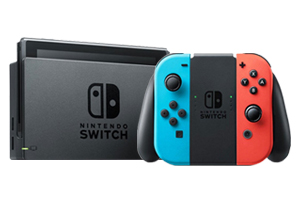
1. Nintendo Switch : It has USB-C and HDMI, two options for video output. To ensure long-hour operation, Switch console is mostly placed in the dock for charging , and use its HDMI output as the video output.
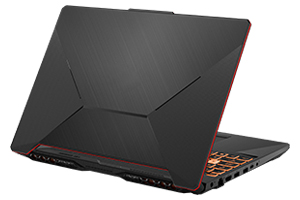
2. Laptop : Already installed a live streaming software (such as OBS), which can edit multiple sources and stream to the live platform.
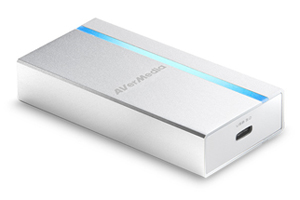
3. AVerMedia BU110 Capture Card : Capture game images and transmit to laptop/PC. Video capture card is divided into two types: internal & external. The internal video capture card shall be installed to the motherboard; and the external one is for the laptop use. BU110 is a basic one-in-one-out capture card and delivery the video signals through USB port.
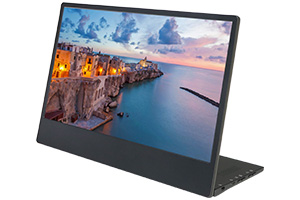
4. GeChic M505E portable monitor (external monitor for Switch) : Receive video signals from Switch, as the main monitor for playing games. Unlike other portable monitors, M505E specifically supports HDMI-Loop function (also known as HDMI Pass Through function), which can receive the video and audio signals through HDMI IN port and output the signals through the HDMI OUT port.
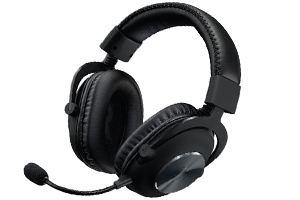
5. Headset : In addition to listening to the game background music, the streamer can also directly respond to the audience with voice.
Connection diagram :
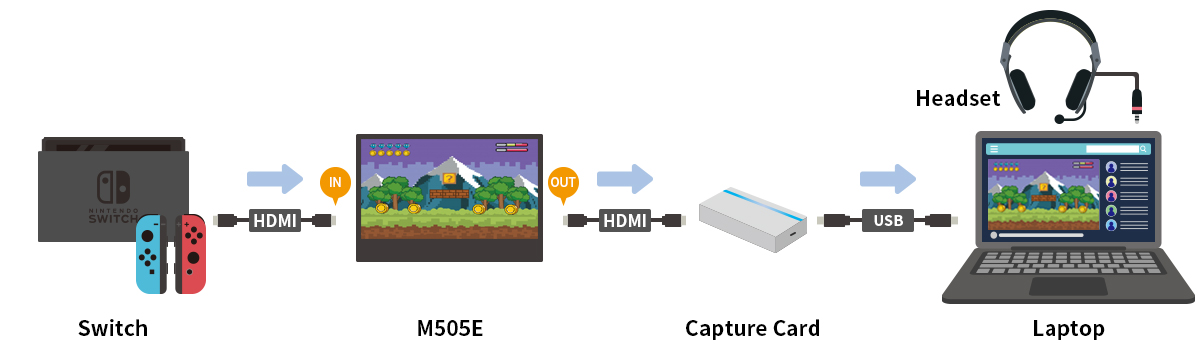
Connect Switch to M505E as the main display for game, and through its HDMI OUT to transmit the video signals to video capture card and then deliver to the OBS platform on the laptop.
💡 Advantages
★ The M505E game screen is at the same height with Laptop OBS platform Laptop, which is convenient for two-way viewing and operation.
★ Separating the game images and the OBS window makes the gameplay not be affected by the performance of the video capture card.
★ Utilize the HDMI-Loop function of M505E, no need to buy one-in and two-out video capture card.
Notes : HDMI IN and HDMI OUT
● HDMI is a high-definition multimedia interface that can transmit audio and video signals at the same time. Devices that adopt the HDMI specification are usually divided into two categories: HDMI source device and HDMI sink device.
● IN is the abbreviation of INPUT (input): It means that it can receive video and audio signal input. Generally, external monitor and TV are HDMI receivers, with HDMI IN ports, which can receive video signals from digital TV box and computer.
● OUT is the abbreviation of OUTPUT (output): It means that it can output and transmit audio and video signals. It is an HDMI signal source device. Generally, the HDMI ports on game consoles and laptops are HDMI OUT,so they cannot receive video source input!
This is the reason why we cannot connect Nintendo Switch to laptop to play games directly.
Devices with HDMI IN

Devices with HDMI OUT

How-To Video
How to set up dual monitors for Switch live streaming? Watch the video!
Conclusion
Separating the OBS platform and the gameplay screen into two screens makes the live streaming smoother! Play games on M505E, FHD, true-color and high-definition monitor and then transmit the video to the video capture card and laptop. The visual experience is better.Also, comparing to play game and monitoring OBS on the laptop through the capture card, this way is smoother and free of lag.
Laptop, portable monitor, video capture card and Switch are all easy to carry. Whether you spend the night at a friend’s house, take it to the studio, or simply want to change the environment for live streaming, it is a combination that you can dock anywhere anytime.
After the device connection is completed, the final step is to consolidate the sources and upload the streaming video! Nowadays, the live streaming becomes more and more popular and many streaming software pops up. We’ve tested the famous OBS Studio and another software Streamlabs OBS, highly recommended by streamers, free but not support Mac, for gameplay recording and the results are quite satisfying.
Avermedia also has their own live streaming software - RECentral, supporting their video capture card, which is convenient for checking whether your video capture card needs to update firmware or not and its settings. It’s one of the free options of the live stream software.
In the next article, we use OBS Studio, which is compatible with Mac and Windows, to explain in details how to set up OBS software for live streaming.