
No full-screen display while Connecting iPhone 17/16/15 to a USB-C Monitor? Magnify and Charge iPhone Series via USB-C
2025/02/05 Update |By G Editor
In the past, the iPhone required a Lightning digital AV adapter to convert to HDMI output to connect to a monitor or TV. One of the highlights of the iPhone 17/16/15 is the support for USB-C DisplayPort Alt Mode. This adopts the industry-standard USB-C audio/video transmission specification, allowing you to connect to a monitor that supports USB-C video interface without any adapter. This not only enhances the overall user experience but also provides better versatility for application and gameplay. Here is how to connect your USB-C iPhone 17/16/15 to a monitor and what to keep in mind. Let's explore!
How to Connect iPhone with an USB-C Monitor
Use a USB Type-C video cable to connect your iPhone 17/16/15 and USB-C monitor for instant zoom-in viewing! Please note that the standard USB-C charging cable included with the iPhone 17/16/15 can only charge and cannot transmit video signals. Some USB-C cables and monitor ports on the market can only support power delivery, not video transmission, so be sure to check the specifications carefully when purchasing.
There are two ways to connect your iPhone 17/16/15 to a USB-C monitor:
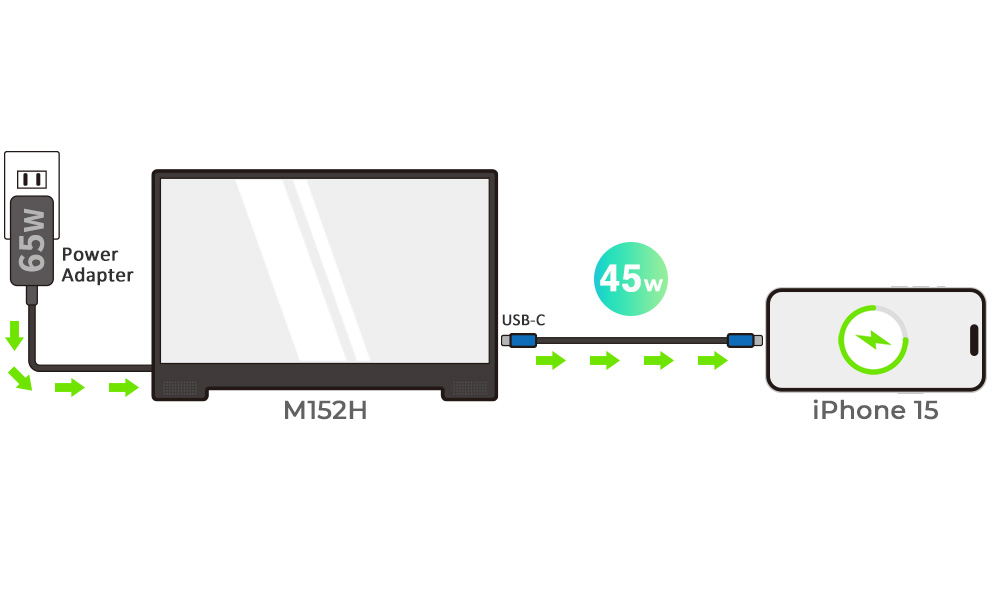
1.The monitor supports USB PD fast charging – transmitting video & charging iPhone 17/16/15 at the same time.
GeChic 2101H, M152H, and M505I, supporting USB-C video transmission and USB PD fast charging, are recommended first. Simply connect your iPhone 17/16/15 to one of these monitors with a USB Type-C video cable to output the phone's screen and simultaneously charge it. Enjoy a large screen without the concern of your iPhone's battery draining!
2. The monitor does not support charging - transmitting video and audio only
Most of the monitors do not output power. For instance, the USB-C port on the monitor only receives video signals, but not outputs power. While connecting an iPhone 17, 16, or 15 to M161H with a USB-C cable, the power requirement of the monitor is supplied by the iPhone's battery through the USB-C cable, so it is recommended that you use the USB Type-C video and independent power cable (0.5m) for the connection. This specially designed cable allows you to supply power to the monitor separately, preventing the extra power consumption of the monitor. from draining the phone’s battery.
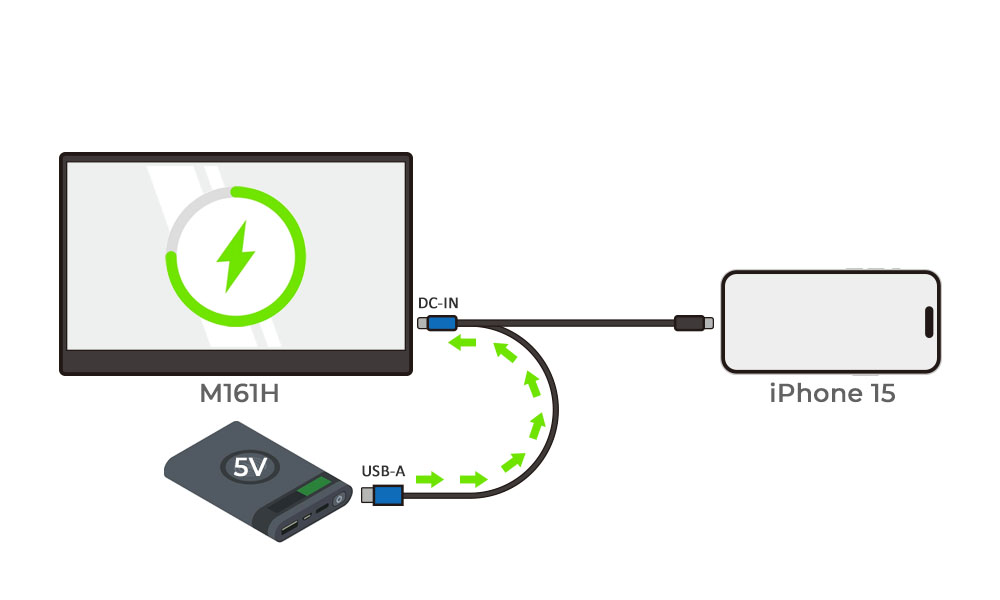
The models with USB-C video Input:
*Since iPhone does not support external touch, when connected with M505I / M505T touchscreen monitors, it cannot be manipulated on M505I and M505T. Only video signals can be transmitted.
*When iOS outputs USB-C DisplayPort video signals to an external device, the audio is automatically routed to the external device. The iPhone itself will not play the sound, hence, it is recommended to use a monitor equipped with built-in speakers.
Can an External Monitor Display the iPhone Home Screen vertically?
Most computer monitors have a horizontal display with a 16:9 ratio. However, the iPhone's iOS home screen is vertical and cannot be rotated to landscape mode. As a receiver, the external monitor can only faithfully present the images from the phone. When the iPhone outputs the vertical home screen, the monitor will display the home screen in the center and cannot rotate the input image. The same limitation goes for other apps that do not support landscape mode!
📱 Tips!
If the phone's screen can be rotated to landscape mode & operated, it means that the app has been designed with a landscape interface and can output the landscape screen to an external monitor/TV.
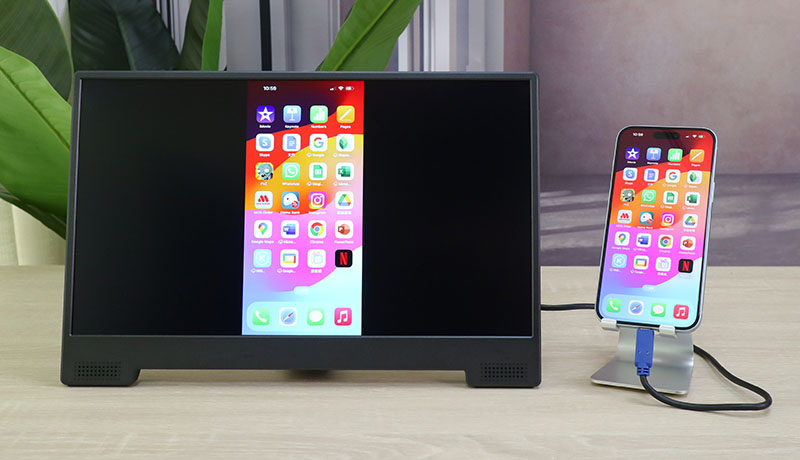
Why is there a black border on the screen when I watch a movie on an external monitor connected with iPhone 17/16/15?
The issue of the black border on the external monitor is similar to the problem of the iPhone's home screen not being full. The black border on the screen is caused by the difference in display ratio between the iPhone and the external monitor. iPhone has a 19.5:9 display ratio, while most of the mainstream monitors have a 16:9 display ratio, so if you put a 19.5:9 image into a 16:9 screen, a black frame with no image data will appear.
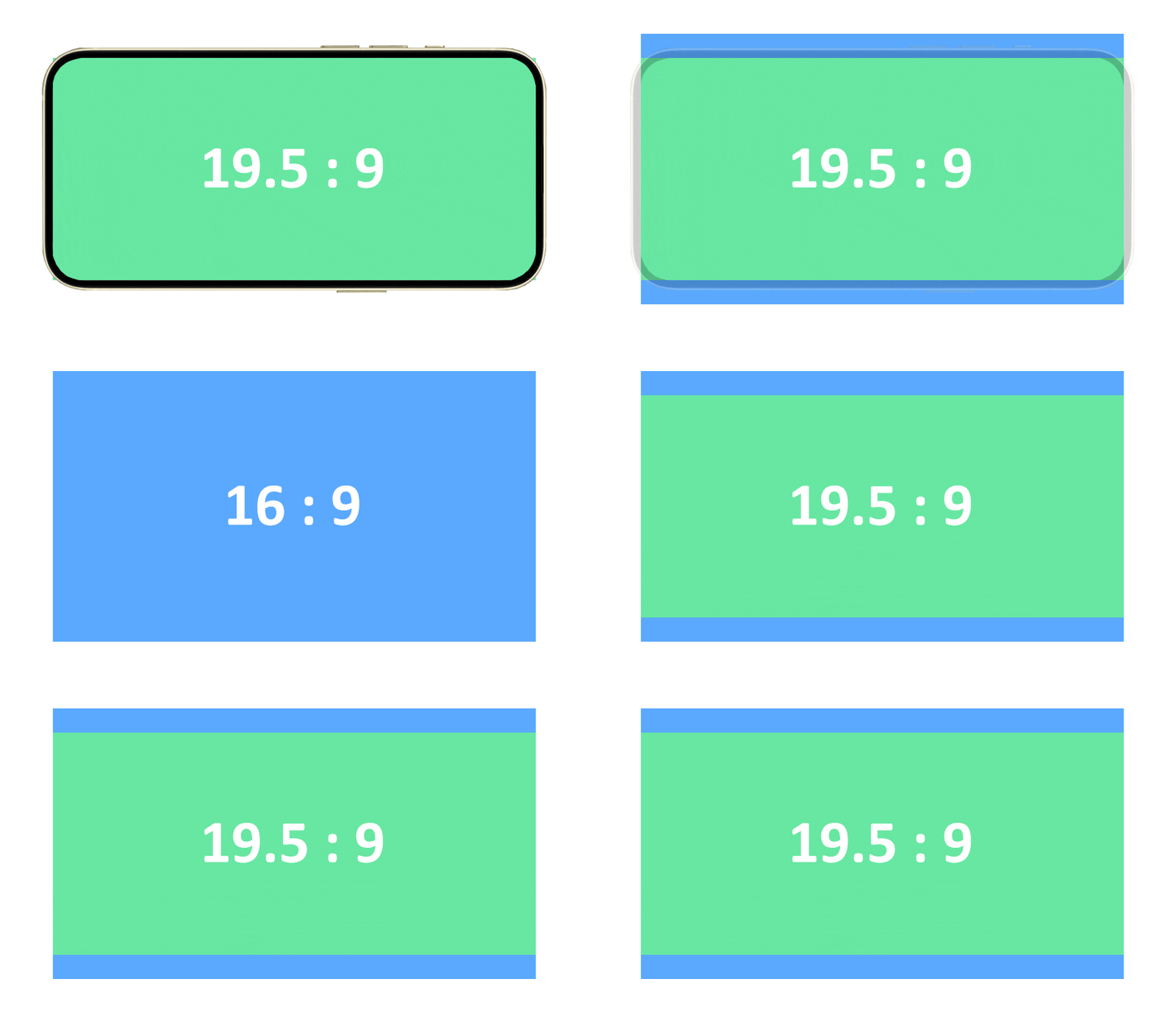
In addition to the main reason of "the difference in panel aspect ratios", the image format of the app also affects the range of the black border on the monitor:
●Screen Mirroring
19.5:9 Aspect Ratio
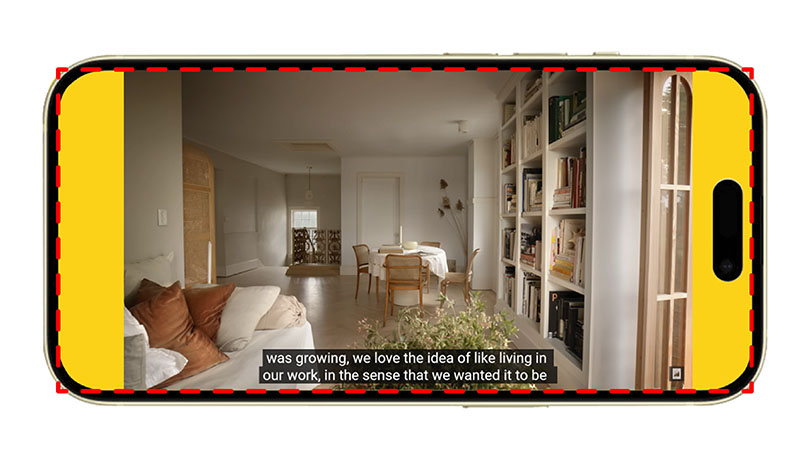
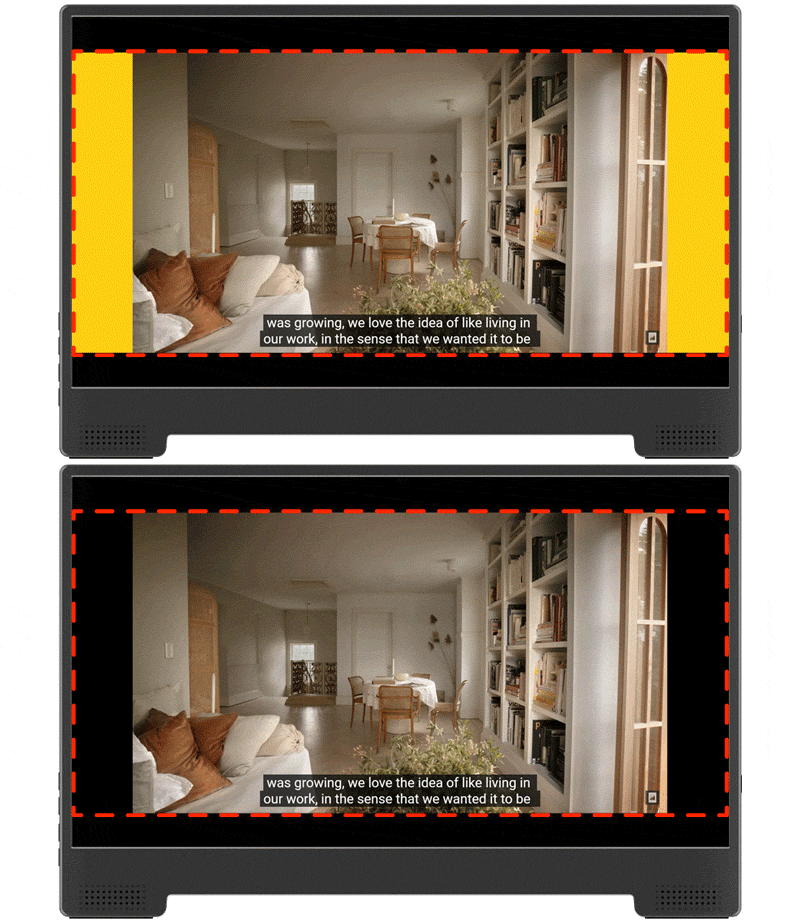
When you watch a video in horizontal mode on YouTube, the entire 19.5:9 screen can be displayed. However, if you play a 16:9 video, there will be no image data on the left or right sides, which will be displayed as black (the yellow block).
16:9 Aspect Ratio
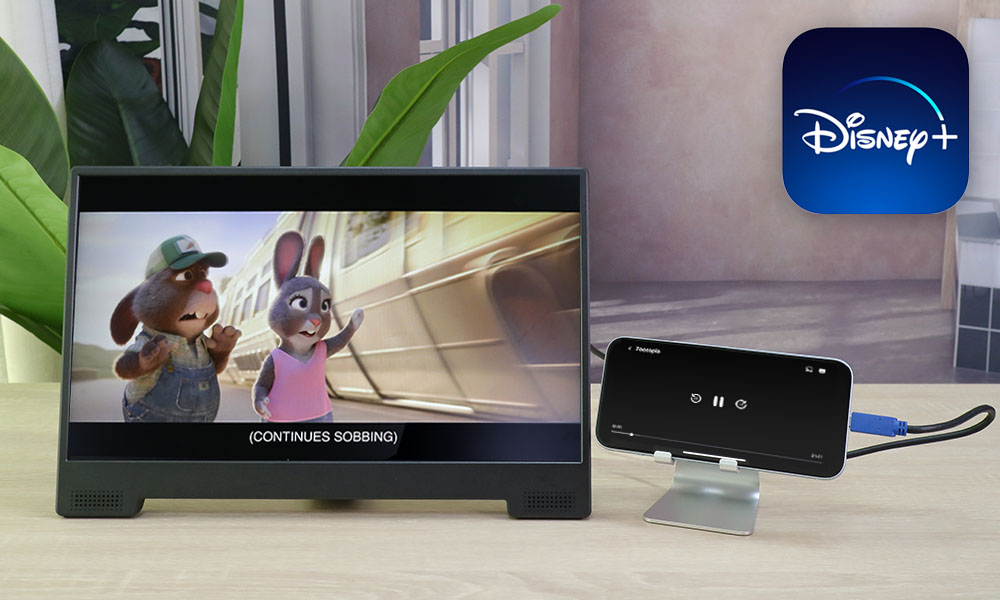
When casting the entire iPhone 17/16/15 screen to a 16:9 display, the extra portion over the 19.5:9 iPhone screen is displayed as black borders on the top and bottom of the screen and the black areas on the left and right are the black images from YouTube. When viewing on the external monitor, this video format results in black borders appearing on all sides of the screen.
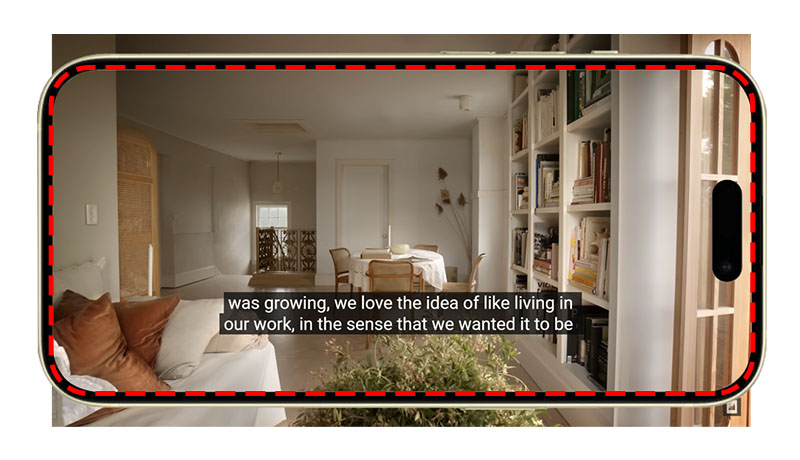
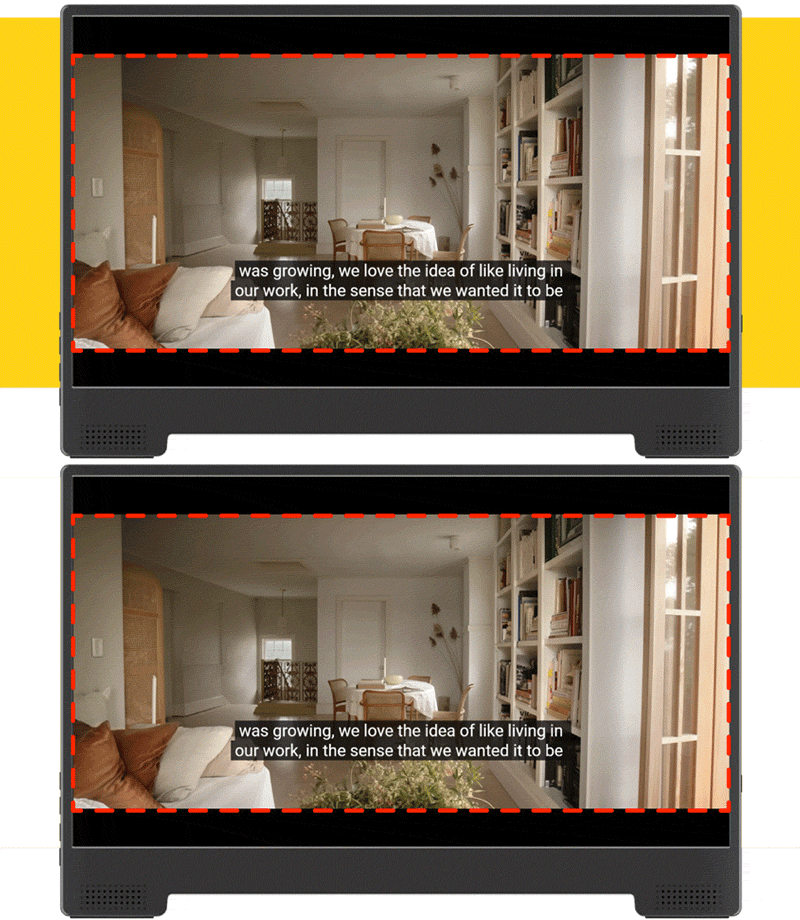
Luckily, the Pinch to Zoom gesture, originally designed to "zoom in" for details, get to come in handy! You can use Pinch to Zoom (up to 8x) to zoom in on a movie in full size. As you zoom in, the black borders on the left and right on the external monitor will disappear, and the top and bottom of the movie will be pushed out of the phone's viewable range. You may lose the subtitles on the bottom edge of the movie, but if there are CC subtitles, the subtitles will be automatically adjusted within the display range!
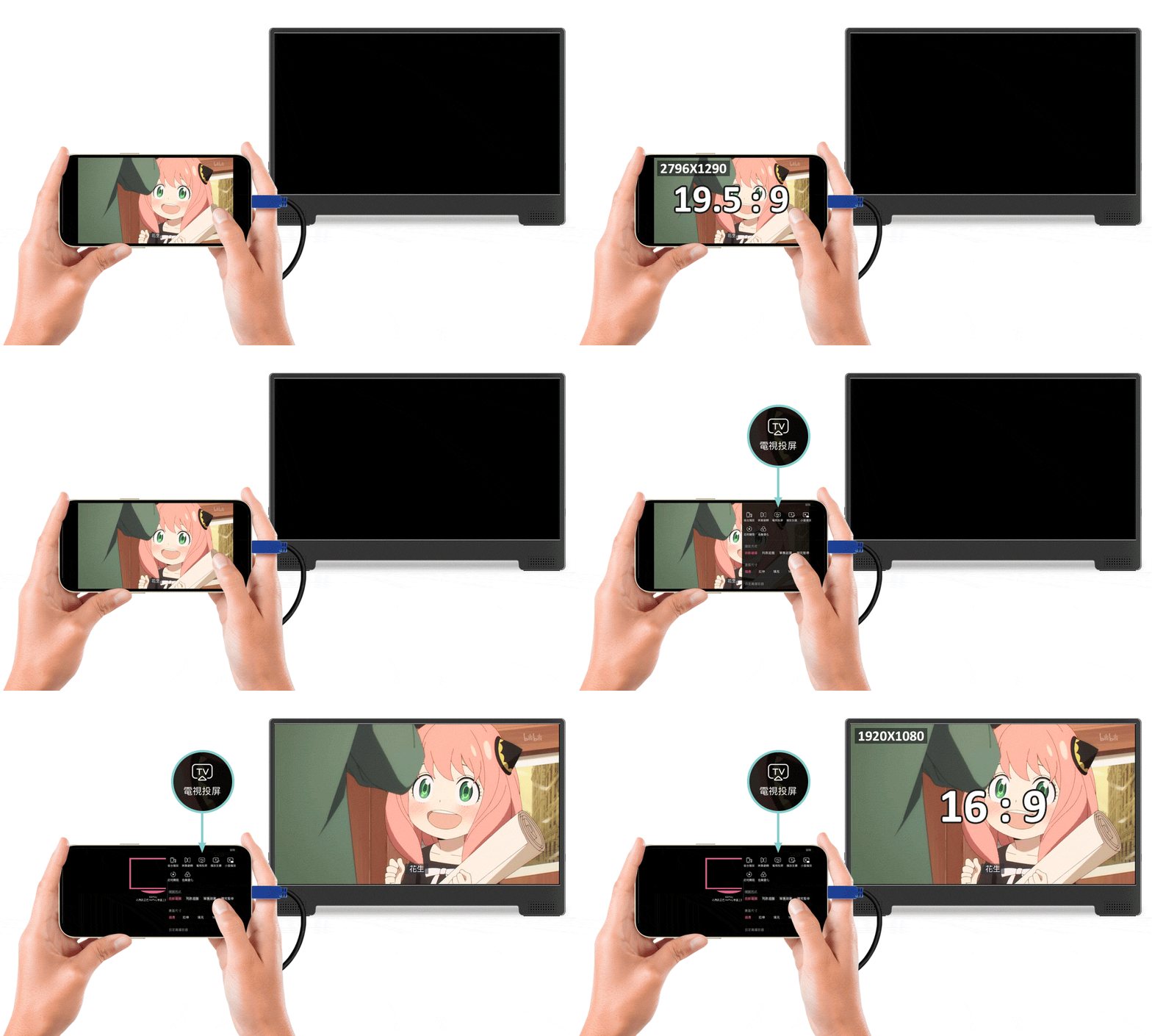
Some streaming or OTT platforms, like Bilibili and 動畫瘋, support screen-off playback. While outputting a video to an external monitor for playback, "This video is playing on AirPlay" will be shown on the phone's screen. If the video is in 16:9 format, the phone will automatically cast the 16:9 video onto the external screen, and then it can be displayed in full screen without black borders.
Test Result of Casting Apps Screen
The display result on the external monitor is determined by the display ratio of the smartphone, the video format, and the functions of the app being used. To find the output display on the external screen, you can refer to the results of common apps below.
Video Apps
| full screen or not | |
| Netflix | depends on the video format |
| Disney+ | depends on the video format |
| Twitch | No |
| Apple TV | depends on the video format |
| Bilibili | Yes |
| LINE TV | No |



Document/Editing Apps
| full screen or not | |
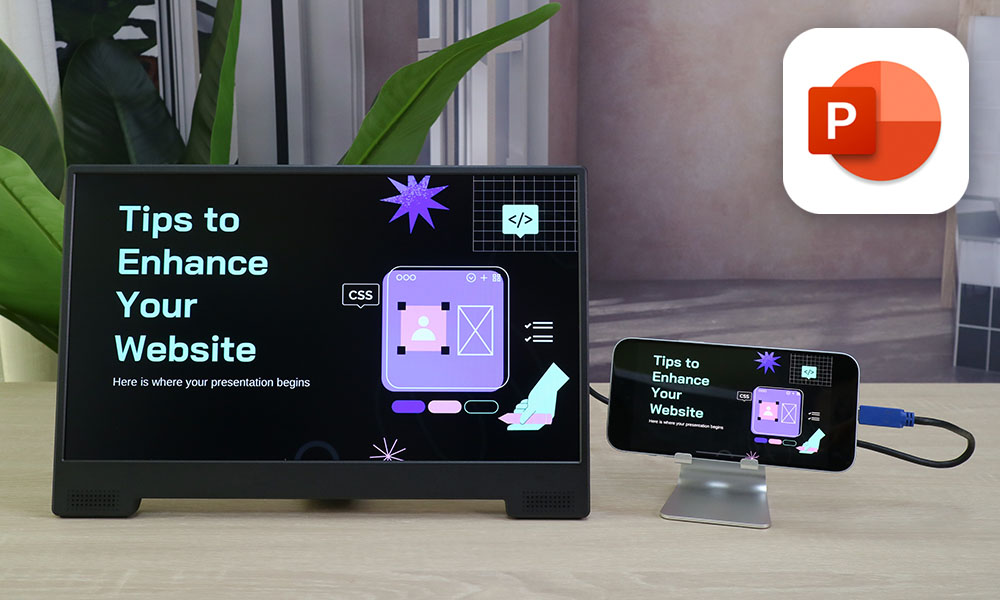
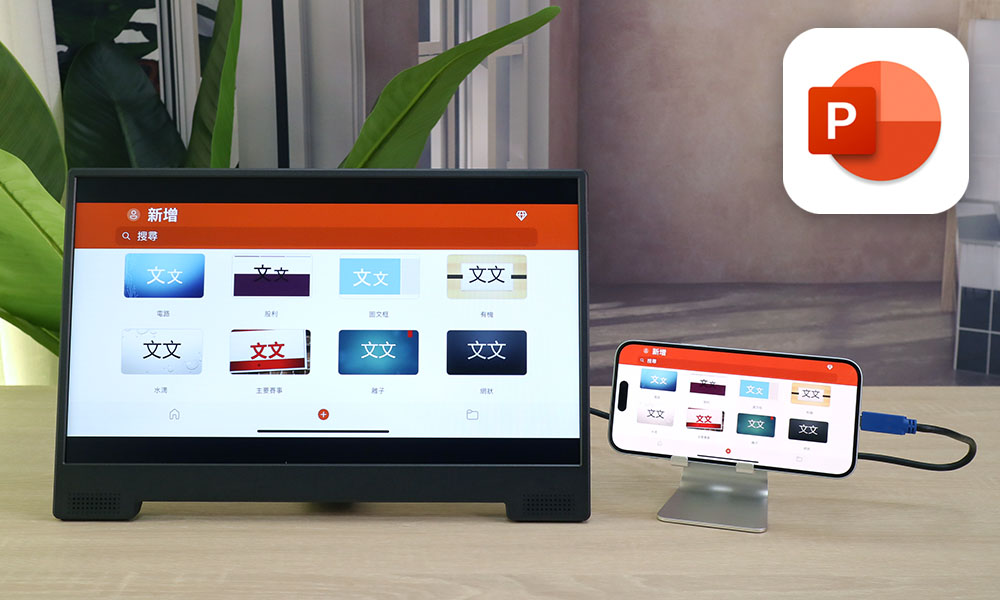
| PowerPoint/ Word | No while editing, full screen while in presentation mode |
| iMoive | No while editing, full screen while viewing 16:9 video |
| InShot | No (only vertical display) |


Social Media Apps
| full screen or not | |
| X(Twitter) | only horizontal, no full screen display |
| No | |
| No | |
| TikTok | No |


Others
| full screen or not | |
| Safari | No(only horizontal) |
| Google Map | No(only horizontal) |
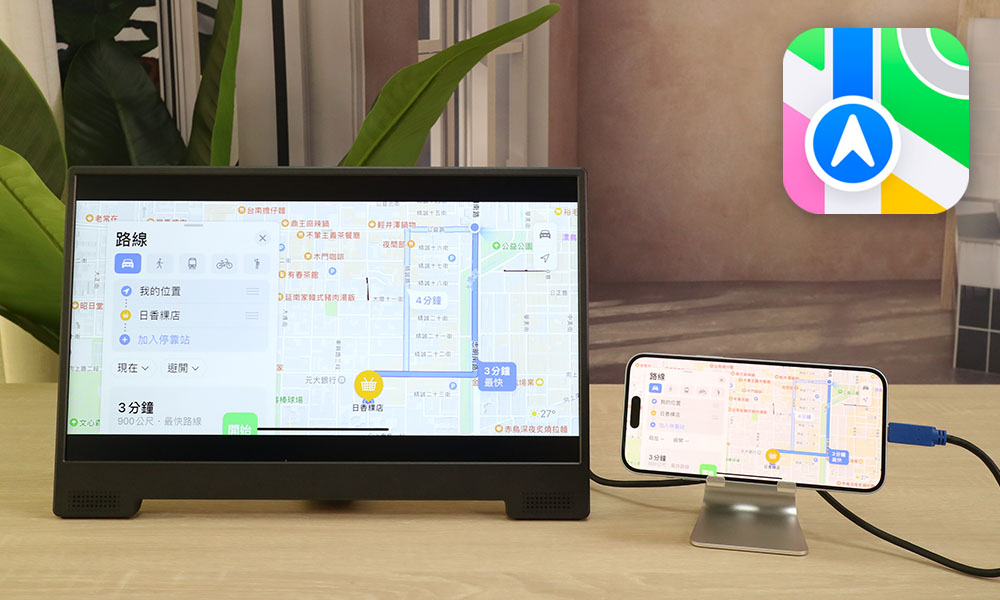
| Apple Map | No(only horizontal) |
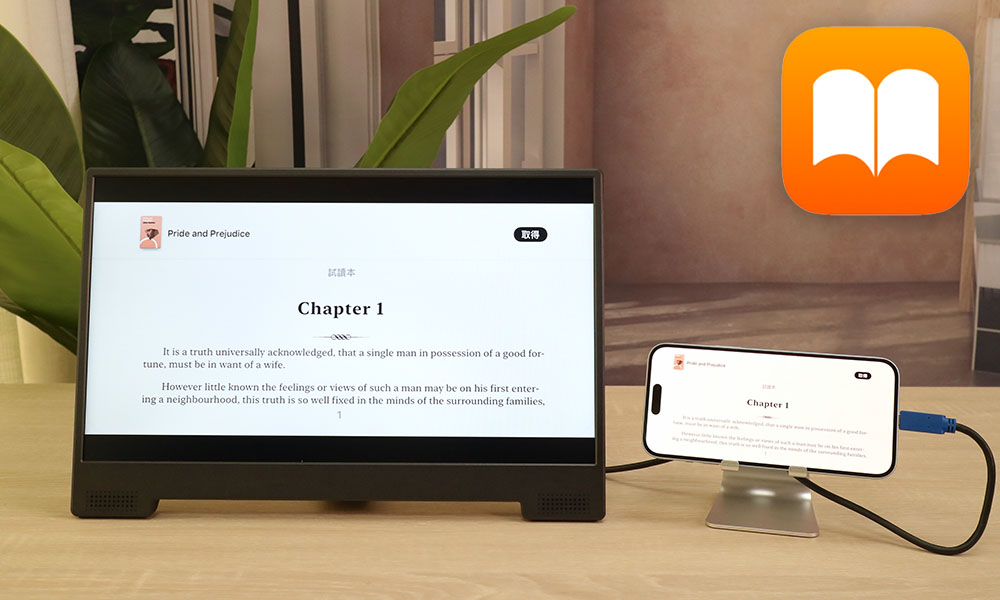
| Book | No(only horizontal) |
| Freeform | No(only horizontal) |
| No(only horizontal) | |
| Genshin Impact | No(only horizontal) |