
Ubuntu Multi-head Touchscreen Settings
2023/11/15 |By G Editor
Ubuntu Desktop distribution has been popular since its launch due to its user-friendly interface and low system requirement. This has led many users to switch from Windows and rejuvenate their old laptops and desktops with Ubuntu Desktop.
The touchscreen input is plug-and-play and supports multi-finger touch gestures in a single-screen Ubuntu environment. However, Ubuntu users with dual- or multi-screens will notice that while the screens display normally, the external touchscreen can’t response correctly. This happens because the touch signal from the USB port is not properly mapped to the external monitor.
Since the newest long-term support version of Ubuntu Desktop (22.04.3 LTS) does not yet provide a setting option for touch input, please follow the steps below to manually set up the mapping of the external touch monitor.
Set up with Xinput map_to_output
In an Ubuntu multi-head environment, the easiest way to map the touchscreen is utilizing xinput package from Xorg. The setup steps are as follows:
1. Make sure Wayland is disabled
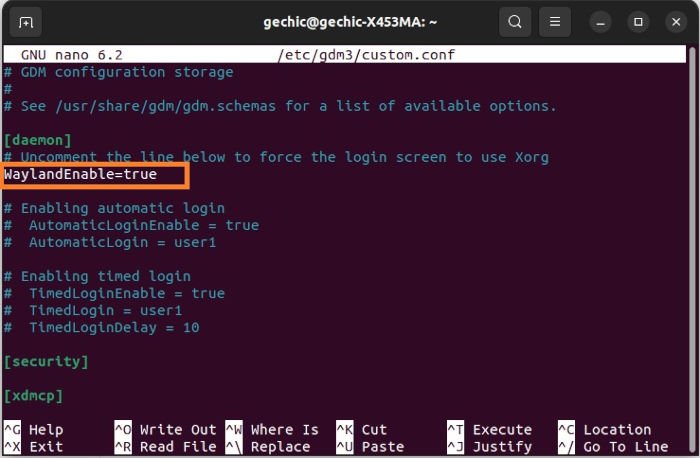
Xorg is not compatible with Wayland, please go to your desktop profile first and make sure Wayland is turned off. Type the following scrips in Terminal:
$ sudo nano /etc/gdm3/custom.conf
Find the WaylandEnable section, and make sure the content is set as WaylandEnable=false.
2. Check the Name of Output
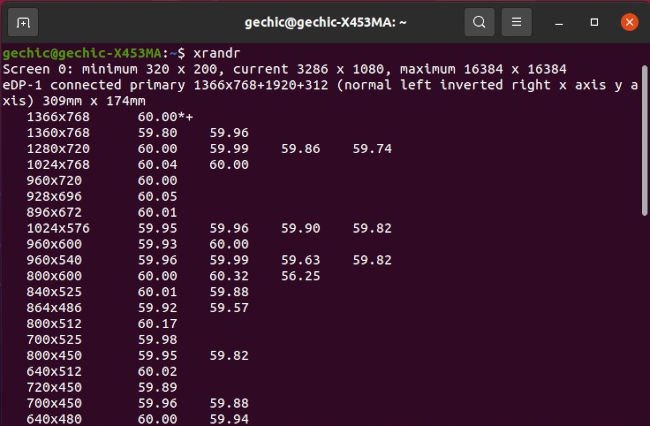
Enter the following command in Terminal to display all the system's display information.
$ xrandr
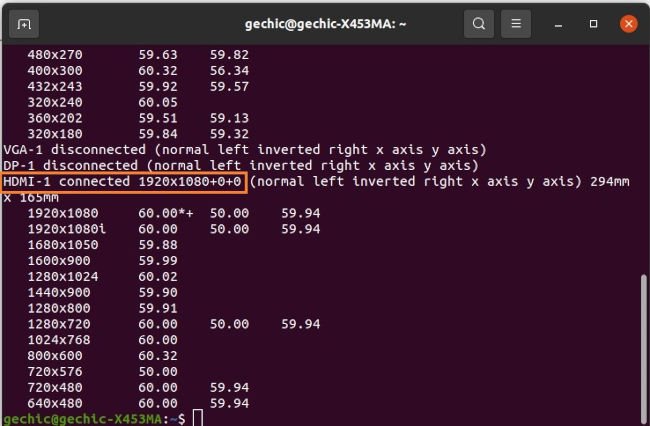
Find the external touch monitor connected via HDMI. In this case, the display output of the touch monitors is recognized as HDMI-1. (Note: Generally, the connection method of the built-in screen of laptops is eDP)
3. Check the Device ID of Touch Monitor
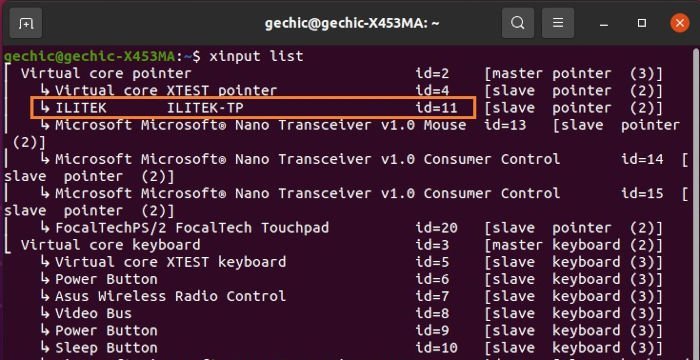
Enter the following command in Terminal to list all x-input devices information. For Gechic's touchscreens, please look for devices with "ILITEK" in their name. In this example, the Gechic touch screen is identified as code 11.
$ xinput list
4. Use Map-to-Output to map the Touchscreen
Xinput provides the command map-to-output that specifies the mapping to the display. Enter the following scripts in Terminal to map the USB device ID 11 to the display HDMI-1.
$ xinput map-to-output 11 “HDMI-1”
After running the above scripts by pressing enter, the touch monitor shall react correctly.
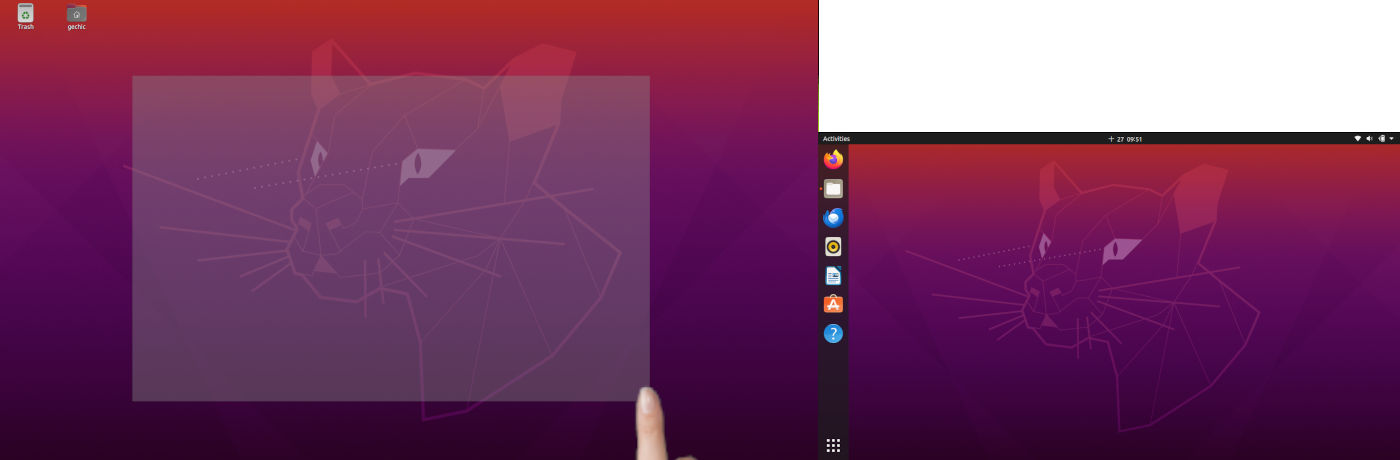
However, the touch mapping will be disabled after rebooting or re-plugging the USB cable of the external monitor, and you must enter the map-to-output scripts again to set the mapping position of the USB device. For your convenience, we suggest that you set the scripts of mapping to run automatically when your desktop is started.

Set Up Map_to_Output Auto-Run
The map-to-output of xinput only takes effect after the desktop environment is started, so it is recommended to write it as a desktop auto-run file. The detailed steps are as follows:
1. Find Out the Name of Touch Monitor
We knew that the device ID of the touch monitor is 11. However, this ID can be changed due to reboot or changing the USB port. Therefore, we recommend using the device name instead of the device ID when setting up the auto-execute file.
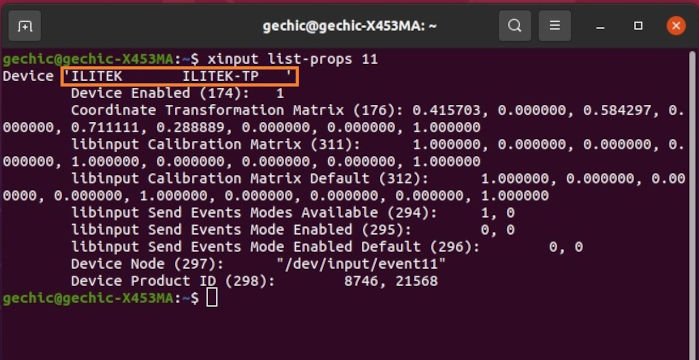
Enter the following scripts in Terminal to display all the attribute data of the touch monitor and we find out the name of the device as "ILITEK ILITEK-TP " (all data between single quotes, including spaces).
$ xinput list-props 11
2. Add a Scrip File of Map-to-Output
Enter the following scripts in Terminal to add a file named touchscreen.sh under the folder .config.
$ sudo nano ~/.config/touchscreen.sh
Enter the following scripts in the file and press ctrl+x to save.
#! /bin/bash
xinput map-to-output “ILITEK ILITEK-TP “ HDMI-1
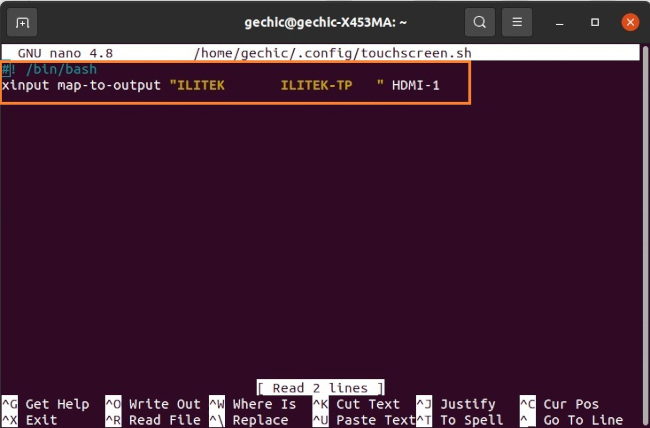
Enter the following scripts to set the executable authority.
$ sudo chmod+x ~/.config/touchscreen.sh
3. Add an Auto-Run File
Enter the following scripts in Terminal to add a file named touch.desktop under the folder .config/autostart. (If you can’t find an “autostart” folder inside .config folder, please add one by yourself)
$ sudo nano ~/.config/autostart/touch.desktop
Enter the following scripts in the file, save and exit. [Note: The location of the executable file should be your actual file location].
[Desktop Entry]
Type=Application
Name=touch
Exec=/home/gechic/.config/touchscreen.sh
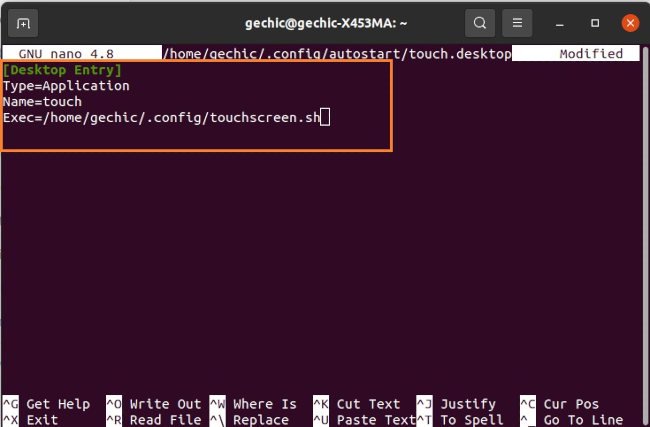
4. Reboot
After rebooting, test on the external touch monitor. And it shall react correctly.
Multi-Screen Touchscreen Settings under Wayland
Wayland is a newer generation of Linux display manager, supporting better graphical interface and touch gestures under single screen. However, Wayland is still under development and currently can’t map touch input on a multi-screen setup. There is not a similar command to map to output in Wayland, and the xinput commands are not valid when Wayland is open.
If you want to set up multi-head touch mapping under Wayland, you have to give up the gnome desktop and utilize Sway to configure the application windows. Afterwards, you can apply the map_to_output command to establish the mapping for the external touch monitor.
1. Check the Name of Display
After installing Sway, select Sway in the lower right corner on the login page and log in. Start Terminal and Enter the following commands to install swaymsg.
$ sudo apt install swaymsg
After the installation is completed, enter this command to get the names of output devices. The external touch monitor connected via HDMI is here identified as Unknown Gechic T131A 000000202130
$ swaymsg -t get_outputs
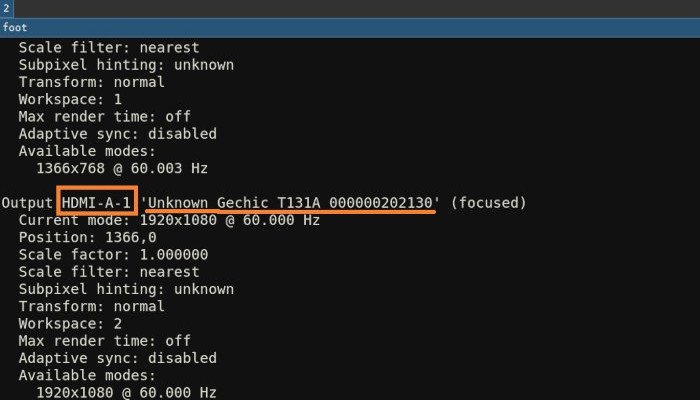
2. Find the Name of Input Device
Enter the following command to find out the names of input devices. The touch monitor here is identified as 8746:21568:ILITEK ILITEK-TP
$ swaymsg -t get_inputs

3. Set USB Device Mapping to the Display
Enter the following scripts to edit the config file of sway.
$ sudo nano ~/.config/sway/config
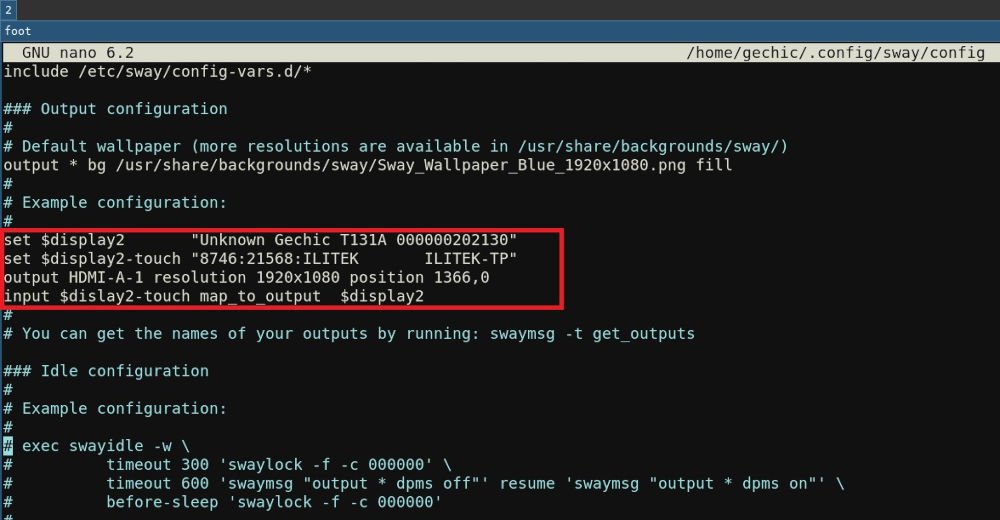
In the section of 'output', input the following scripts to set the USB device mapping to the touch monitor. (Note: The third row specifies the resolution and extension position of the touch monitor, which is not nessessary. )
set $display2 “Unknown Gechic T131A 000000202130”
set $display2-touch “8746:21568:ILITEK ILITEK-TP”
output HDMI-A-1 resolution 1920x1080 position 1366,0
input $display2-touch map_to_output $display2
4. Reboot
After rebooting, the external touch monitor shall react correctly.