

Set up Multi-Touch Gestures for Touchscreens in Linux
2023/05/16 |By G Editor
Along with the boom of Linux applications, various Linux desktops have enriched the user interface to help newcomers started quickly. More and more people use Ubuntu or Linux KDE as their daily computer system, in stead of Windows system, therefore, more and more touch gesture needs emerge.
Although Linux does not emphasize touch gestures as much as windows system, some Linux distributions and desktops have recently joined the ranks of multi touch gestures support. We can also enhance Linux multi-touch-gesture functions by installing the freeware Touchegg to make Linux operation more flexible and user-friendly.
Linux Desktops with Touch Gestures Support
The latest Gnome desktop, Ubuntu desktop, KDE(Plasma) desktop all support multi touch gestures. After installing these desktops on Linux system, you can use touch gestures on touchscreen immediately. In addition to the basic gestures, such as tap to select, zoom in/out, press and hold, etc., there are also multi-finger touch gestures supported. Here are some favorited ones:

Swipe 3 fingers upwards--> Open the activities overview

Swipe 3 fingers downwards--> Switch the workspaces

Drag down from the top edge--> Exit from Fullscreen

Drag up from the bottom edge-->Bring on-screen keyboard
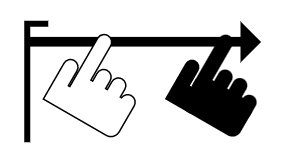
Slide from the left edge-->Open the applications view

Slide from the left edge-->Bring the notifications list

Drag 4 fingers up/down-->Switch the workspaces

Hold 3 fingers & tap the fourth-->Switch applications
👉 Touch Gestures Supported on KDE Desktop
KDE(Plasma) Desktop supports partial touchscreen gestures from version 5.20 onwards, but multi-finger touch gestures for switching workspaces are not yet supported.
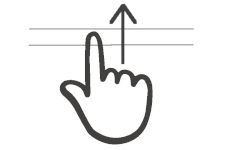
Tap the title bar & drag up-->set the application Fullscreen
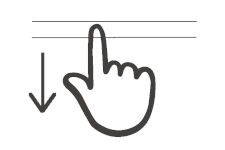
Tap the title bar & drag down--> minimise the application

Pinch 2 fingers out/in--> zoom out/int the pictures/objects
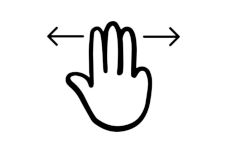
Swipe 3 fingers left/right--> tile the application to left half/right half
⭐Tip 1:
If you are unable to perform touch gestures on the above desktop, please check that you have updated to the latest version of that desktop.
⭐Tip 2:
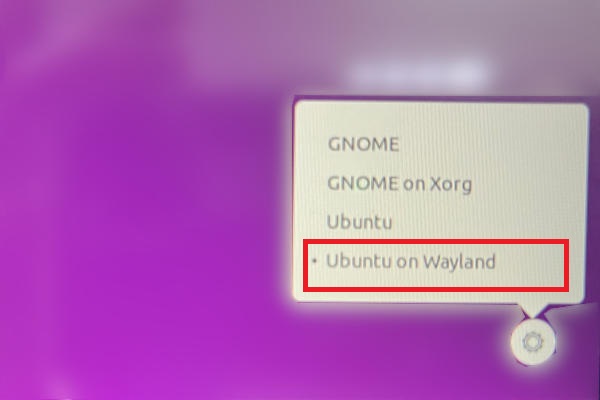
If touch gestures don't work on the Ubuntu desktop, check and make sure Wayland is enabled.
① Open Terminal
② Input sudo nano /etc/gdm3/custom.conf
③ In the file, input WaylandEnable=true
④ Save the file and reboot the system. Select [Ubuntu on Wayland] in the login menu.

⭐Tip 3:
If Firebox is unable to scroll and zoom in/out via touchscreen, please manually enable Wayland support for Firefox.
① Open Terminal
② Input gedit ~/.profile(Since Ubuntu 22.10, please change gedit as gnome-text-editor.)
③ At the end of the file, input export MOZ_ENABLE_WAYLAND=1
④ Save the file and reboot the system.
Note: wayland support of system must be enabled.
Software to Add Touch Gestures on Linux
For Linux desktops that do not yet support touchscreen gestures, such as Raspberry Pi OS desktop, Cinnamon desktop, XFCE desktop, Mate desktop, etc., the freeware Touchegg can be used to enhance the touchscreen gestures function.
🌀Step 1:Install Touchegg
Use ppa to install Touchegg on Ubuntu
① Open Terminal
② Input sudo add-apt-repository ppa:touchegg/stable
③ Input sudo apt update
④ Input sudo apt install touchegg --> Installed successfully

If your system does not support ppa, please download Touchegg to install.
① Select the proper file based on your system.
https://github.com/JoseExposito/touchegg/releases
② After download the file, open Terminal
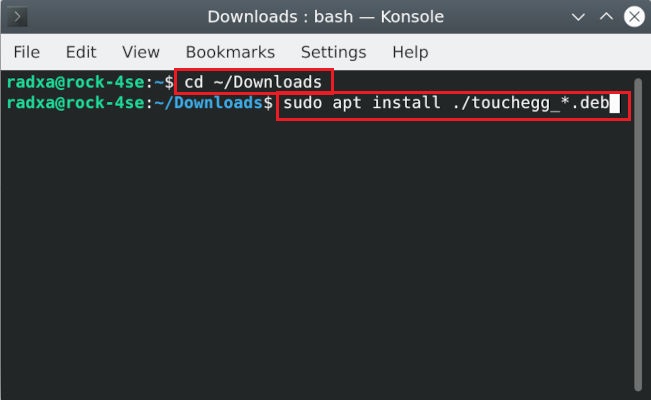
③ Input cd ~/Downloads
④ Input sudo apt install ./touchegg_*.deb to install it.
🌀Step 2:Insatll Touche
Touche is the graphic setting software for Touchegg. We suggest your to install Touche via Flatpak.
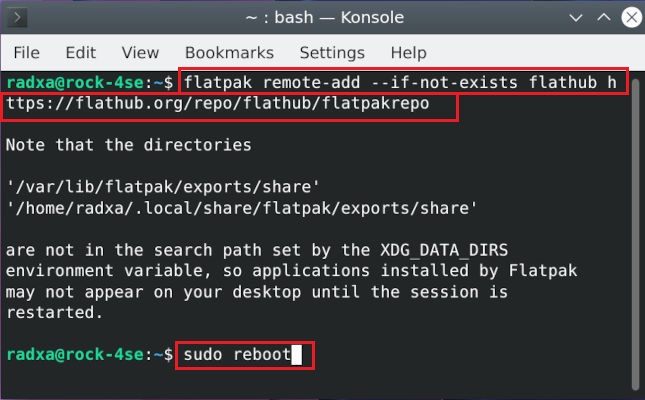
① Install flatpack first:Input the followings in Terminal
sudo apt install flatpak
flatpak remote-add --if-not-exists flathub https://flathub.org/repo/flathub.flatpakrepo
sudo reboot
② Input flatpak install flathub com.github.joseexposito.touche for installation
③ Input flatpak run com.github.joseexposito.touche to run Touche

On the start menu>> Accessories>> Touche icon can be clicked to activate.

🌀Step 3:Set 3 /4 finguer-gestures in Touche
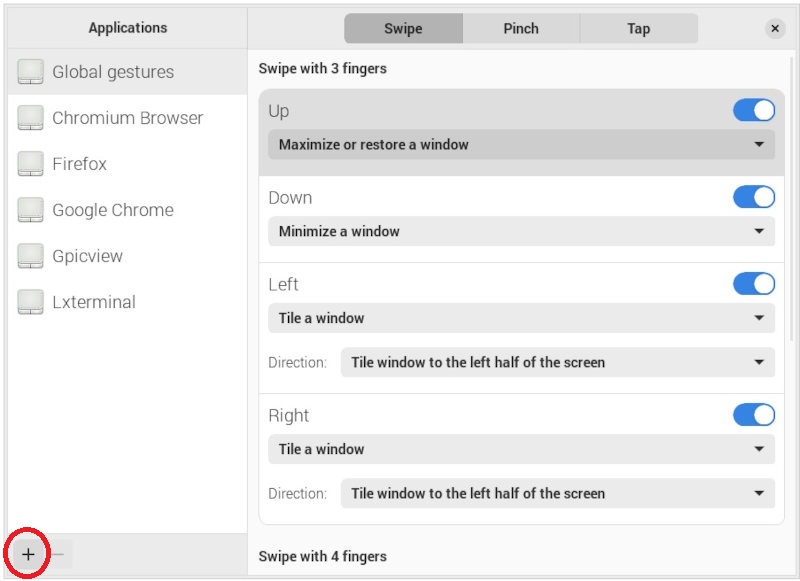
There are 8 system actions offered in the Touche menu that can be assigned to different touch gestures according to your needs:
♦ Maximize or restore a window
♦ Minimize a window
♦ Tile a window
♦ Fullscreen a window
♦ Close a window
♦ Switch desktops/workspaces
♦ Show desktop
♦ Keyboard shortcut
The picture below shows settings of these touch gestures: 3 fingers swiping up to maximize the window; 3 fingers swiping down to minimize the window; 3 fingers swiping left/right to tile the window to the left or right half of the screen.
Touche gestures can be set to be system-wide or to be used for a specific application. To add an application to the Touche menu, click on the + sign in the bottom left corner and then click on the application you want to add.
🌀Step 4: Manual settings of zoom in/out gestures
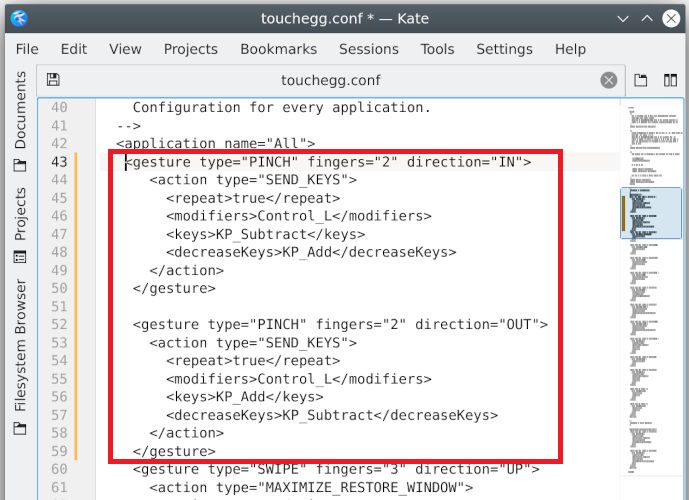
The Touchegg's two-finger zoom action must be set using the Keyboard Shortcut, which is recommended to be set manually by editing the Touchegg's configure file directly:
① Open touchegg.conf : the file location is /.config/touchegg/touchegg.conf
Right click on the icon of touchegg.conf , and select Text Editor to open the file.
② Copy the content inside the red square and past them below <application name ="ALL">
<gesture type="PINCH" fingers="2" direction="IN">
<action type="SEND_KEYS">
<repeat>true</repeat>
<modifiers>Control_L</modifiers>
<keys>KP_Subtract</keys>
<decreaseKeys>KP_Add</decreaseKeys>
</action>
</gesture>
<gesture type="PINCH" fingers="2" direction="OUT">
<action type="SEND_KEYS">
<repeat>true</repeat>
<modifiers>Control_L</modifiers>
<keys>KP_Add</keys>
<decreaseKeys>KP_Subtract</decreaseKeys>
</action>
</gesture>
⭐Tip 1: Can not find touchegg.conf
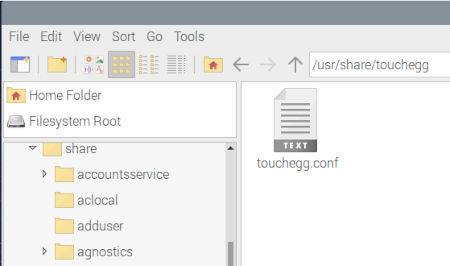
If you can not find touchegg.conf in /.config/touchegg/, please copy and paste it from /usr/share/touchegg/ to /.config/touchegg/.
⭐Tip 2: Do not want to install Touche
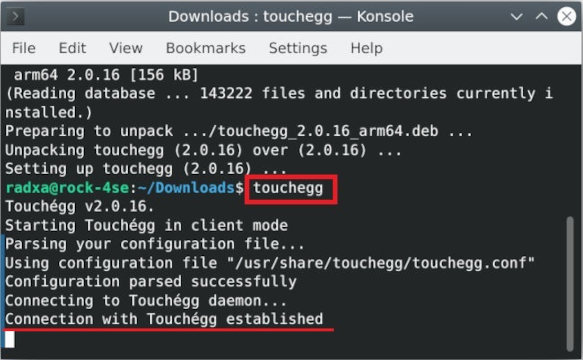
The function of Touche is as graphic setting interface of Touchegg. You can run Touchegg directly without Touche.
① Open Terminal
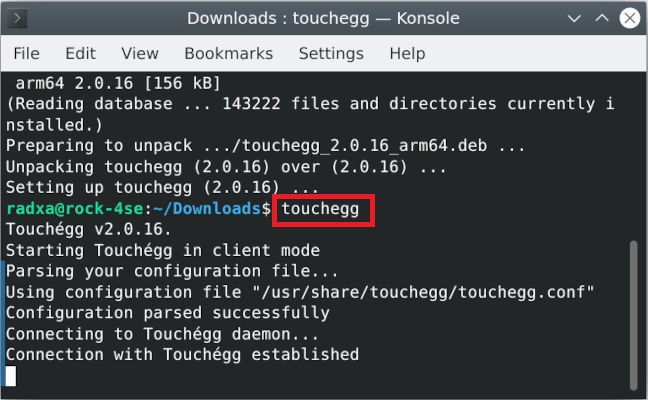
② Input touchegg
③ "Connection with Touchegg established" showed--> Touchegg is running.
⭐Tip 3: Touch gestures no response.
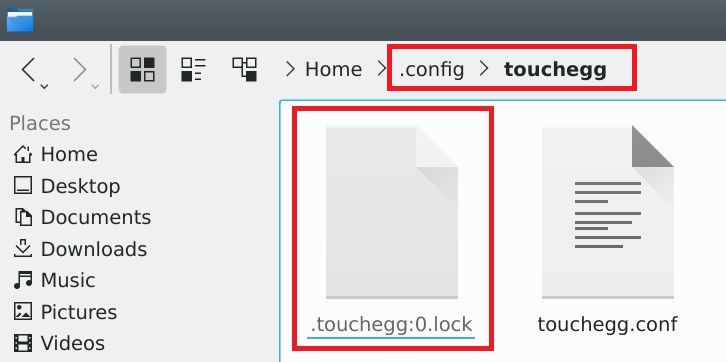
If Touchegg runs successfully, but the touch gestures do not respond. Please check if there is an incorrect file(.lock) inside /.config/touchegg/ folder. Delete this incorrect file and the touch gestures will respond normally.
Wrap Up
Multi-finger touch gestures for Linux are discussed more in relation to touch gesture on touchpads. However, definition of touchpad gestures does not include the window position information needed to interpret touchscreen gestures, so Linux software for defining touchpad gestures via Libinput, such as Ninja, Fusuma, etc., cannot be used for touchscreens gestures.
We recommend Linux users who wish to use multi-finger touchscreen gestures directly install Linux desktops supporting multi-finger touch gestures - Gnome desktop, Ubuntu desktop, KDE (Plasma) desktop – to adopt touchscreen gestures quickly and easily. And then use Touchegg to add your own gestures as required.