
Connect Speakers to a Monitor & Set Up Audio Output
2023/06/20 |By G Editor
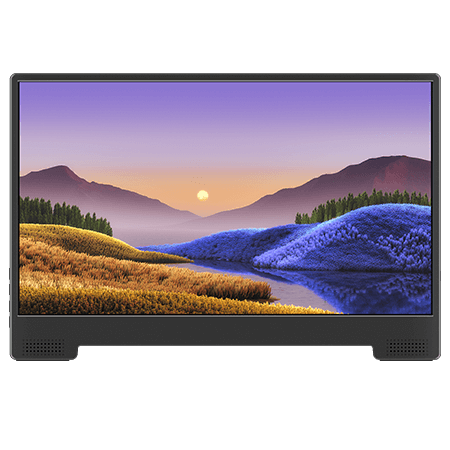
Many monitors on the market are not equipped with speakers, and neither are most portable monitors due to their body size and the place it might be used. If users need to play back sound, they can connect external speakers to the portable monitor in addition to play audio directly from the laptop.
How to Connect Speakers to a Monitor
The easiest way to connect speakers to a monitor is via the headphone jack. Since headphone jack can output AUX audio, the monitor can output audio to the speakers if an AUX audio cable is used to connect the speakers to the monitor.
Note: Remember to check whether the monitor is equipped with a AUX output jack while purchasing. Some portable monitors are not equipped with AUX headphone jacks.
🌀Connection Method
① Insert the AUX cable
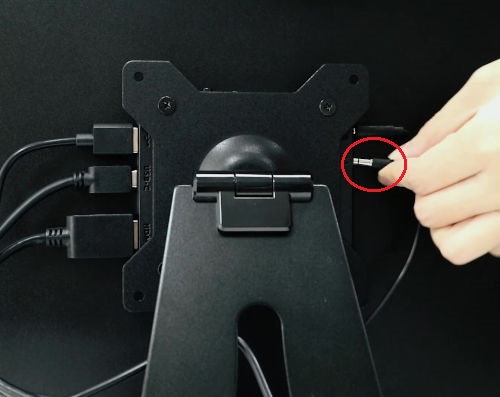
② Insert the power cable of speakers
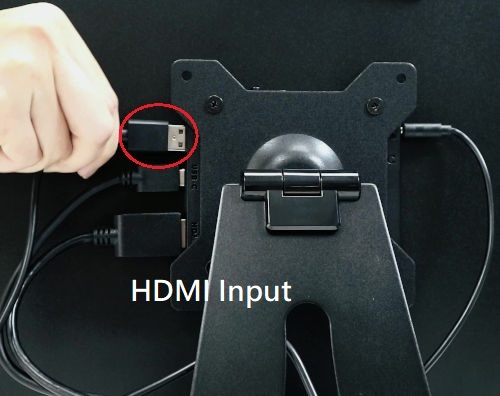
③ Enjoy the speaker sound
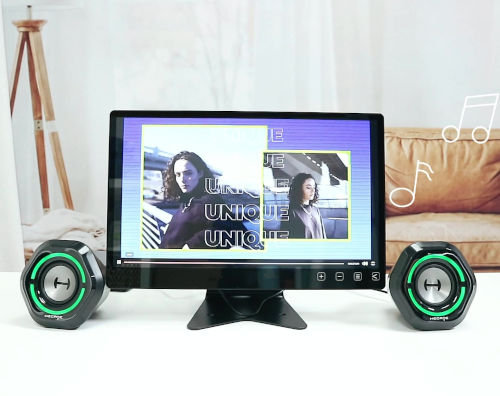
● The power cable of USB speaker can be plugged into the USB-A port of the T1/M505I etc. If it is not a USB speaker, plug the speaker power cable into the power socket.
⭐Should the speakers be connected to the computer or the monitor?
The source of sound is the computer, the computer sound card is responsible for processing the sound output, the monitor is only the receiver, so if the monitor does not have a headphone jack, or if you want to use an external DAC device for better sound output, you should connect the speakers to the computer.
Since monitors are placed on the desktop, theirs IO ports are easy to find, which makes connect the external speakers to the monitor via AUX more convenient and quick even on the go. Another advantage is that it is easier to switch between devices, for example from connecting to a laptop to a game console.


How to Select the Speakers
There are many different types of speakers with a wide range of prices on the market. The following simple criteria can be adopted when choosing speakers to connect to your monitors.
👉 Select 2-Channel or 2.1-Channel
The 2-channel speakers are divided into left and right channels, also known as stereo, and 2.1-channel is with an extra subwoofer in addition to the 2-channel speakers. Since the 5.1 channel should be matched with a digital interface such as S/PDIF, the speakers connected to the headphone jack on the monitor can be either 2-channel or 2.1-channel speakers.
👉 AUX Jack is a Must
The higher the wattage of the speaker, the louder the volume, but also the more power it consumes. Many small wattage speakers require only USB 5V power and can be connected to a computer USB port or a mobile battery for power, or you can choose models with built-in batteries to enhance the convenience of speaker installation.
👉 Choose the Power Supply Type
The higher the wattage of the speaker, the louder the volume, but also the more power it consumes. Many small wattage speakers require only USB 5V power and can be connected to a computer USB port or a mobile battery for power, or you can choose models with built-in batteries to enhance the convenience of speaker installation.
👉 Select a high-quality AUX Cable
The quality of analogue sound via AUX is affected by the quality of the cable, therefore, a high-quality AUX male to male audio cable (taped core cable + gold plated connectors etc.) is a good choice. It is also important that the TRS connectors (three-contact version) should be purchased to avoid poor contact and transmission due to connector tolerances.
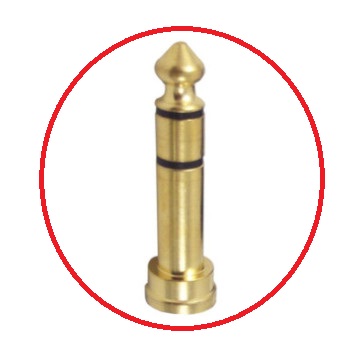
TRS Connector
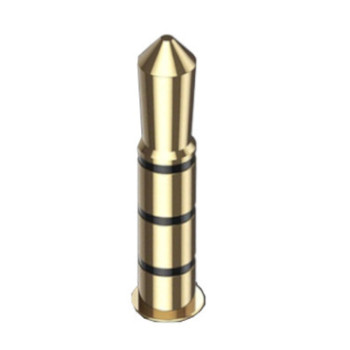
TRRS Connector
Set Up Audio Output Device
💎 Windows 11/10
Once the external monitor and speakers are connected to the computer, you must assign the output device in the computer system. In windows 11/10, click on the speaker icon in the bottom right corner to open the quick menu and select the external monitor as the audio output device.

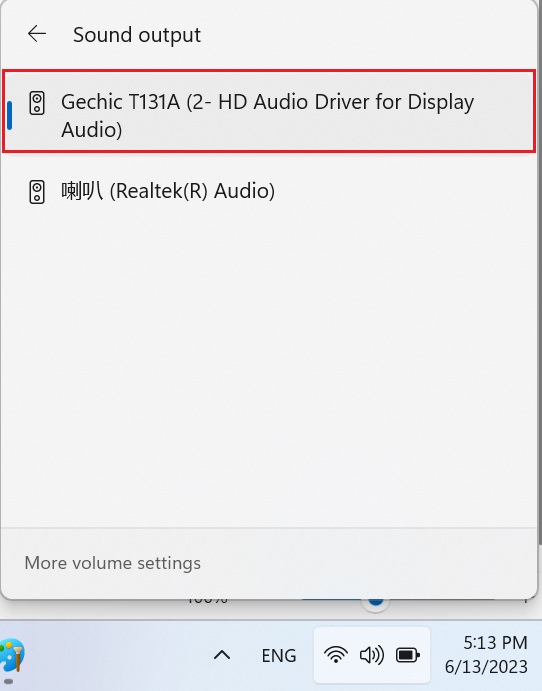
In the device manager of Windows, you can find it in the catalogue of audio inputs and outputs.

💎 MacOS 13
In MacOS 13, click Settings > Sound, and select the monitor as the sound output device in "Output".

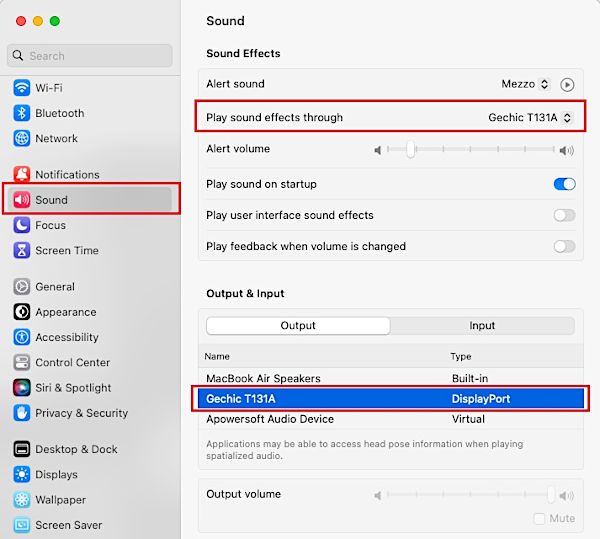
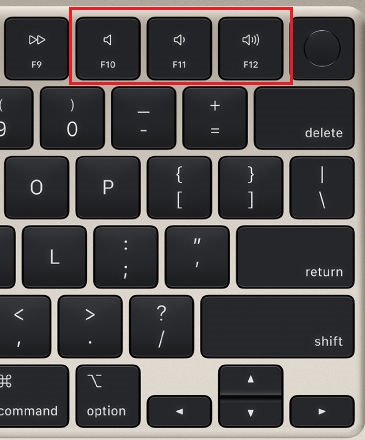
Due to the limitations of MacOS, the volume of the external monitor cannot be adjusted (the lower volume control bar and mute button cannot be set). If you want to adjust the volume of the external monitor through the system settings or the keyboard volume keys, please install the eqMac software.
① Download eqMac Website: https://eqmac.app/
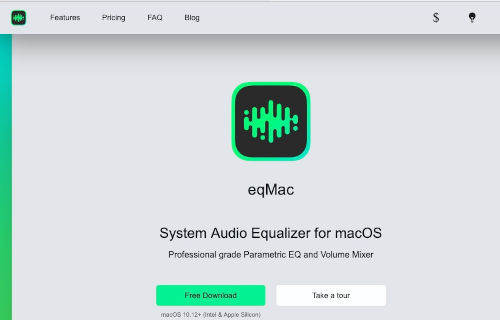
② Import eqMac into Application and run it.

③ Select the external monitor with the suffix (eqMac), and then you can use the volume control bar or the volume keys on the keyboard to control the volume of the external speakers.

Troubleshooting of Audio Output
Q1: Why are speakers so quiet at max volume?
The audio output of computer is determined by the sound card, playback software and source files. In addition to the speaker volume setting, please check the volume setting of the application software in Settings > System > Volume Mixer (eg. Chrome in the figure below) and set the volume of the application to the maximum.

Q2: Why are the people voices so quiet, but the background sound is normal?
If only the human voices in the video are particularly muted, this may be due to the playback software or device being defaulted to 5.1 channel. Check the system settings of the device or software and change the sound from 5.1 channel to stereo or PCM or two-channel to output the audio correctly.
Q3: Why is there no sound from the speaker?
If the monitor is displaying normally and there is no audio output from the speakers connected to the headphone jack on the monitor, please check if the audio output device is set correctly? Is the volume mixer set correctly? Moreover, make sure the AUX cable is with TRS connectors (three-contact version) and is fully inserted into the headphone jack.
Note: If connecting the computer and the monitor through the VGA cable (or via an HDMI to VGA adapter), the headphone jack on the monitor will not be able to output audio, since VGA cannot transmit audio data.
Q4: Why is there no sound in my game?
Please check the game settings. Some video games may differ their audio sources, such as music and sound effect. Make sure that all the audio sources are checked for output and not set to mute. Some games have a so-called surround sound option (similar to 5.1 channel). Please uncheck the surround sound option to avoid the sound not being output to the two-channel speakers properly.