
Upgrade iPhone 17/16/15 with Ease! Play Mobile Games and Edit Videos on iMovie Easier on a Large USB-C Screen
2024/10/07 Update|By G Editor
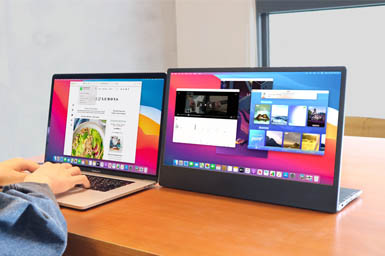
iPhone 17/16/15 finally comprehensively adopts the USB-C interface, enabling direct connection to a USB-C monitor to enlarge iPhone phone screen for viewing! Whether you want to play mobile games on a larger screen in a tiny dorm room, or take, edit, and share videos on your iPhone in one stop, just connect your iPhone to an external monitor and Bluetooth devices such as keyboard/mouse, game controller, etc., and you can create a mobile work/game station, which effortlessly upgrades iPhone 17/16/15 to a mobile mini-computer or a portable game console!
Create a More Comfortable Mobile Gaming Environment
Using iPhone 17/16/15 to play mobile games is a daily routine for many Apple fans. However, watching mobile phone screens for a long time inevitably causes eye fatigue. Just connect iPhone to a USB-C monitor and Bluetooth controller to build up a 15.6-inch mobile game console, for enlarging and playing mobile games anytime and anywhere. It allows for smoother maneuvering and avoids staring at small screens, so you can immerse yourself in the game world!
Keep in tune and see how to upgrade:
▋ Required Devices
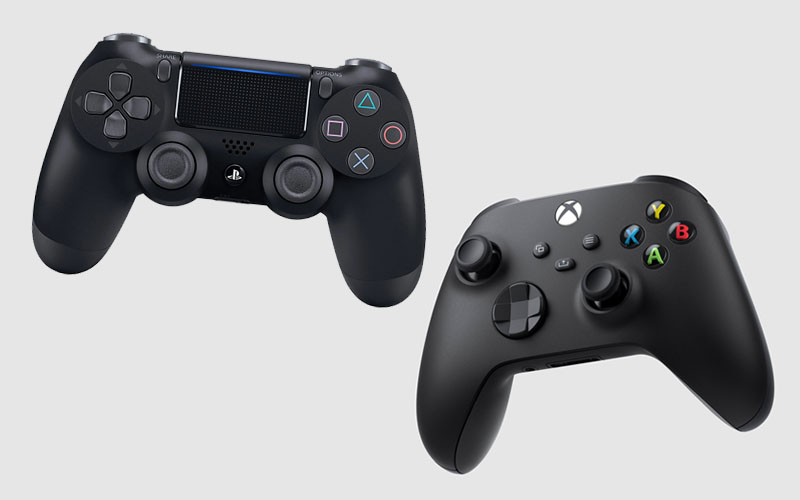
1. Choose a Bluetooth controller that supports iPhone, for example:
① PS4 DualShock 4
② Xbox One S or Xbox Wireless Bluetooth Controller
③ Apple MFi-certified game controller
💡 What is MFi certification?
The full name of MFI is Made for iPhone/iPad/iPod. It is a certification program launched by Apple to ensure the compatibility, quality, and safety of third-party products with Apple. Compared with ordinary products, MFi-certified subsidiary factory products are of higher quality and safety.
Only products authorized by MFi are allowed to have the MFi certification label printed on the product outer box:

2. Choose a portable monitor that supports USB-C interface and has built-in speakers!
Here we use the M152H monitor :
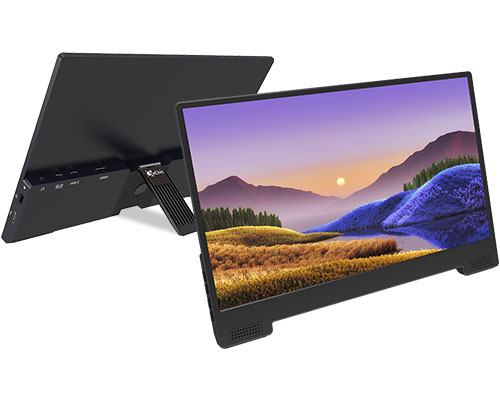
✅ Equipped with HDMI/USB-C dual interfaces
✅ The USB-C interface can supply power to the connected USB-C devices, eg. iPhone 17/16/15, MacBook …etc.
✅ Built-in 2W high-quality speakers
The controller we use is Xbox wireless controller. Get the iPhone and M152H portable monitor on hands, and take out the cables came with the monitor, they are: USB-C cable, USB-A to USB-C power cable, and 65W charger. Then, you can start connecting!
▋ Connection Method
1. Connect iPhone 17/16/15 and M152H :

Step1.
Connect the power cable: Plug the power cable into the DC-IN port of the monitor and the other end to the 65W charger.

Step2.
Connect the video cable: Connect the USB-C cable to the monitor and iPhone.

Step3.
Open the game APP and turn iPhone to landscape orientation.

Step4.
Done! Enjoy the enlarged phone screen and reverse charging feature for the phone at the same time.
*The APP display result on the monitor determined by the display ratio of the smartphone, the video format, and the limitation of the apps. To find the common APPs go full screen or not on the external monitor, please refer to the article:
2. Connect the Bluetooth controller to iPhone 17/16/15
Next, we start to connect the XBOX Bluetooth controller to the iPhone.

Step1.
First, press the XBOX button, and after it lights up slowly, press the small button on the front of the XBOX controller, and the XBOX button will light up quickly.

Step2.
Then, go to "Settings"> "Bluetooth" on iPhone → Find and click the XBOX controller in "Other Devices". After the connection is successful, the XBOX button will continue to light up.
Notes: The iOS games should support controllers! The websites below are for checking which games that are compatible with iPhone controllers:
➤ MFi Games
➤ BACKBONE
Efficient Video Editing on iPhone 17/16/15
iPhone 17/16/15 is built in with a variety of ultra-convenient iOS software. Unfortunately, working on the small iPhone is inevitably inefficient. By connecting iPhone to a portable monitor and Bluetooth keyboard/mouse, you can build up a mobile workstation! When using the productivity tools in iPhone, it is much easier. Especially, you can directly edit videos from the phone, saving you lots of troubles to upload the videos to the computer. Once the editing is completed, you can directly upload to Instagram, YouTube, Tiktok, making video shooting, editing, sharing can all be done with one device, which is super fast and convenient!
▋How To Turn Your iPhone Into a Workstation
1. Connect iPhone 17/16/15 and M152H★
For the steps to connect an external iPhone to M152H portable monitor, please refer to the pervious paragraph of building a mobile game console!
2. Connect Bluetooth Keyboard and Mouse to iPhone 17/16/15★
Next, connect the Bluetooth keyboard and mouse! We are using the Logitech K580 keyboard.

Step1.
First, turn on the switch of the Bluetooth keyboard & mouse.

Step2.
After connected, press the FN + ESC keys simultaneously on the Logitech K580 keyboard. Then the F12 indicator light will light up. Press and hold the F12 key for 3 seconds (this step varies with different Bluetooth keyboards.)

Step3.
Then, go to iPhone Settings > Bluetooth, find the name of the Bluetooth keyboard and mouse, and then pair it!

Step4.
Go back to settings and find "Accessibility" > "Touch" > turn on "Assistive Touch", and the cursor will appear on the screen!

Step5.
Once the connection is completed, you will have a super convenient iPhone workstation!
Testing Time
We have tested the following three video editing apps, all of which support horizontal rotation, allowing you to enlarge and edit the videos on the M152H 15.6-inch monitor!

From stickers, transition effects, AI multiple production tools to music libraries, PowerDirector has very rich built-in resources and is a paid software.
It costs about TWD 93 a month, which is not very expensive and is suitable for those who have a basic editing skills and users who are looking for more advanced video editing functions!
iMovie is a free iPhone built-in editing software, no matter you want to sharing trip or daily record or gourmet food, you can quickly organize the video clips sequence! Free features include adding dynamic subtitles, editing lengths, transitions, or applying filters & music, allowing you to quickly share short videos to the social media platform!

Its subtitles have a variety of animation effects, and you can quickly add special effects, cutting, merging, music and other effects to the videos, but the number of stickers is smaller, and the export of the free version has a watermark on it. If you want to remove the watermark, you need to pay for a subscription, which is TWD 190 a month.
Enlarge & Charge Your iPhone 17/16/15 at the Same Time!
It's worth to mention that M152H portable monitor has PD fast charging function and it's USB-C interface supports reverse power supply with USB-C devices! After the M152H portable monitor is connected to the iPhone 17/16/15, it not only enlarges the monitor for viewing, but also charges the iPhone at the same time. While outputting audio and video to the external monitor or editing videos, iPhone can always maintain full power!

*When connecting M152H to a 65W power supply, the monitor's USB-C interface can output power to the connected USB-C device!
Conclusion
Are you excited after reading the expanded applications for iPhone 17/16/15 above? Not thought of even a tiny iPhone can be transformed into portable work/entertainment stations, just like have an extra portable laptop or mobile game console!
Users who often use iPhone for work and games, do not miss out the M152H, a high-end portable monitor with high-quality speakers and fast charging functions! Not only is it a good external companion for the iPhone, but also it is with USB-C/HDMI interface that could be used as a horizontal extended monitor for MacBook/USB-C laptops/most common HDMI laptops to comprehensively improve your work efficiency!