

Linux – Display Settings
Many Linux desktop environments come with graphical interfaces for system settings. The following shows briefly how to set the screen resolution and display orientation in the system settings of three mainstream Linux desktop environments: Gnome, KDE Plama, and Ubunu.
Gnome Desktop-Display Settings
📌 ① Click【Activities】on the upper left corner➜Click【Show all application】icon at the righ bottom➜ click【 Settings】
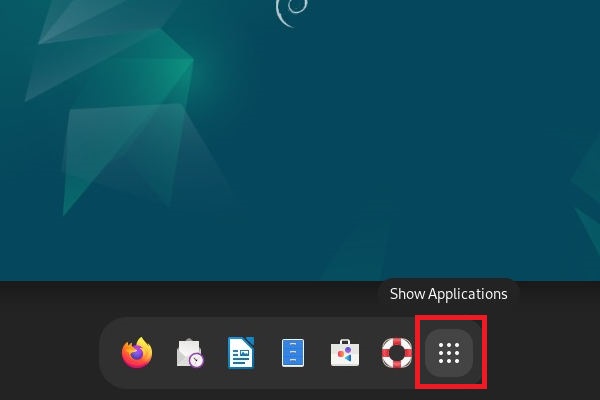
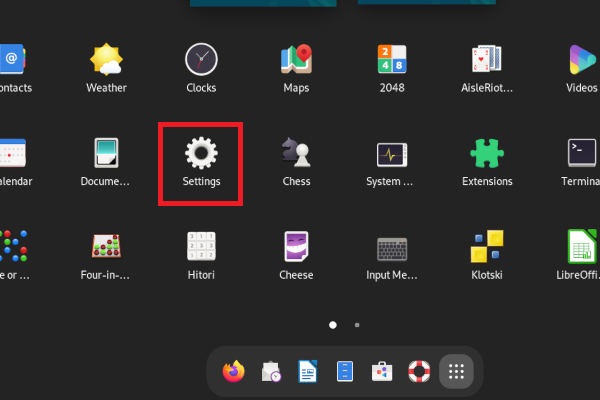
② Drag downwards in the left column ➜ click 【Displays】

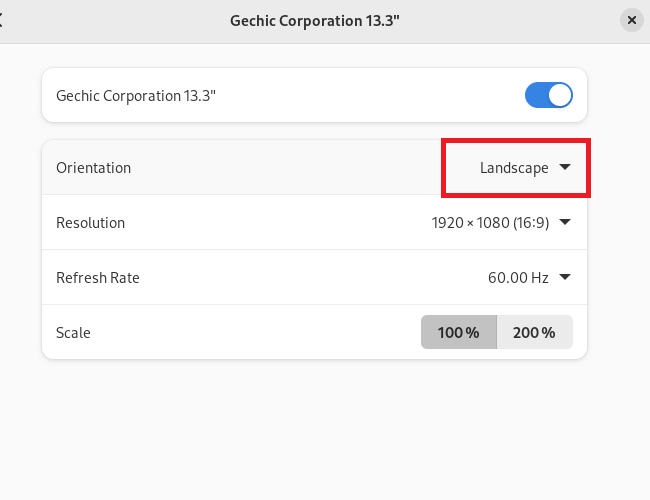
③ Resolution :click to choose a proper resolution.
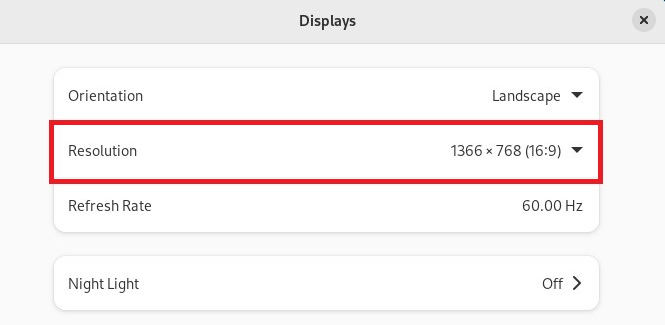
④ Set the Orientation of Display:if a vertical display is required, select 【Portrait Right】 or 【Portrait Left】 from the 【Orientation】 menu .
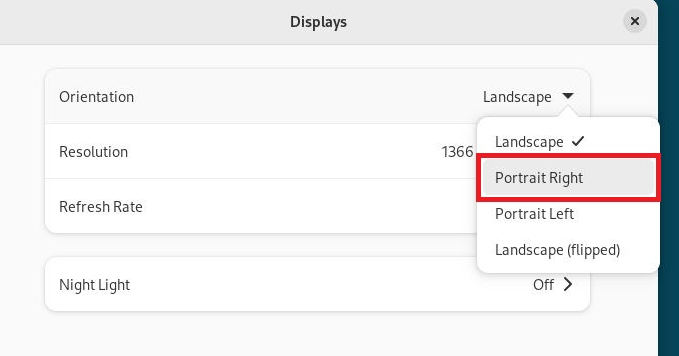
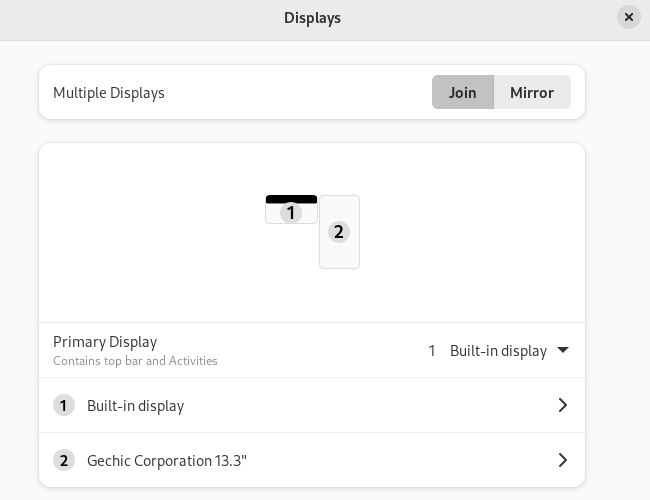
⑤ Synchronised or Extended:If the Debian device is connected to two displays, the 【Multiple Displays】column will appear. For synchronised displays, please select 【Mirror】; for extended displays, please select 【Join】.

To set the external monitordisplay to be extended and vertical, please select【Join】 in 【Multiple Displays】. Tap ❷Display and enter the setting page of the ❷Display. Select 【Portrait Right】 or 【Portrait Left】 in 【Orientation】, confirm and save the change.
KDE Plasma Desktop-Display Settings
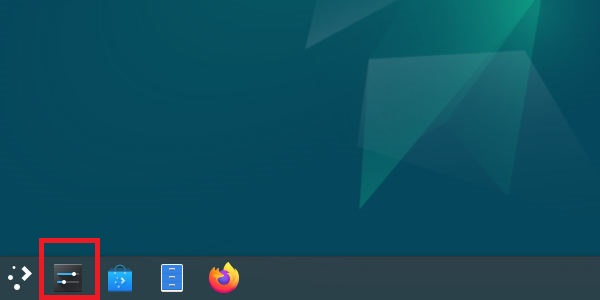
📌 ① Click 【System Settings】 icon in the left bottom cornor to open the settings
② Scroll down in the left column➜ click【Display and Monitor】

③ Resolution:click to choose a proper resolution in the menu.

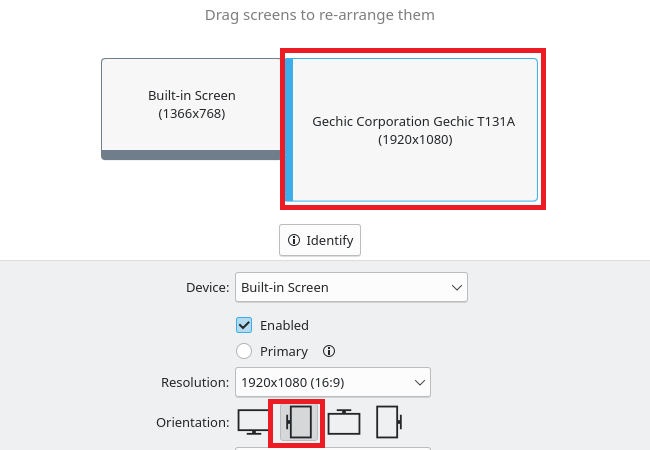
④ Orientation:Set the Orientation of Display:If you need a vertical display, please choose  or
or 
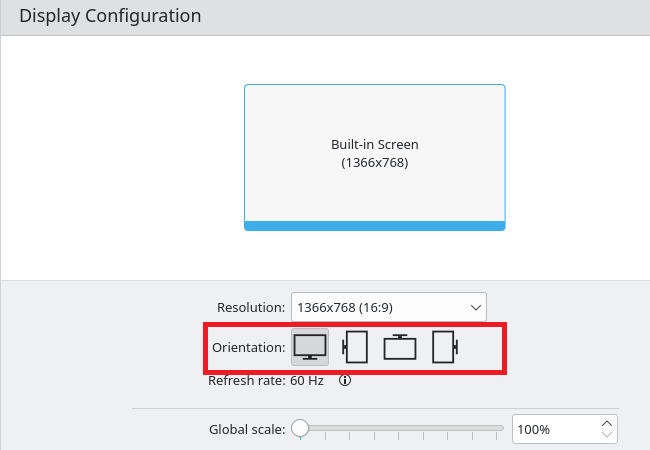
⑤ Synchronised or Extended:If the Debian device is connected to two displays, the 【Replica of】column will appear. For synchronised displays, please select the name of second monitor; for extended displays, please select 【None】.

To set the external monitordisplay to be extended and vertical, please select【None】in【Replica of】column. After tapping the ❷Display, click to choose or in【Orientation】.
Ubuntu Desktop-Display Settings
📌The desktop of Ubuntu desktop distribution is modified from Gnome desktop. Its display settings are similar to Debian-Gnome desktop, please refer to the following instructions for display settings.
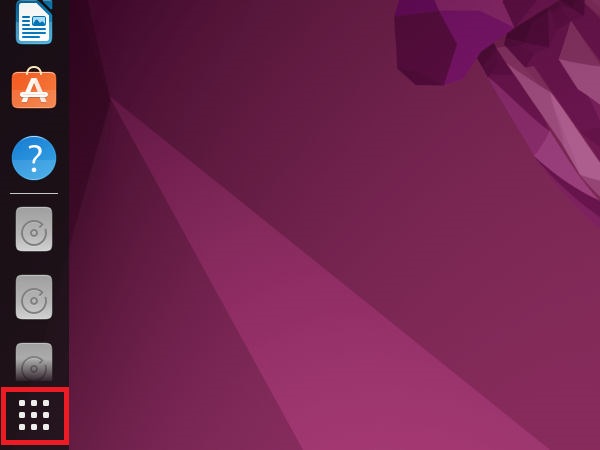
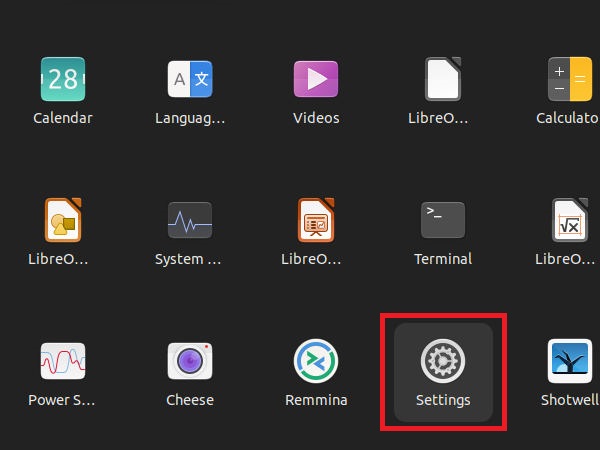
① Click the 【System Settings】icon in the left bottom cornor and open the Settings
② Drag downwards in the left column ➜ click 【Displays】

③ Resolution:click to choose a proper resolution
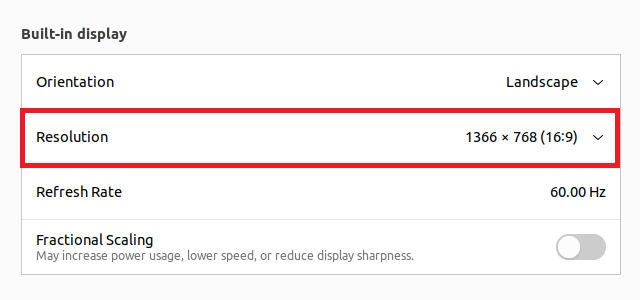
④ Orientation:Set the Orientation of Display:If you need a vertical display, please click to choose【Portrait Right】 or【 Portrait Left】.
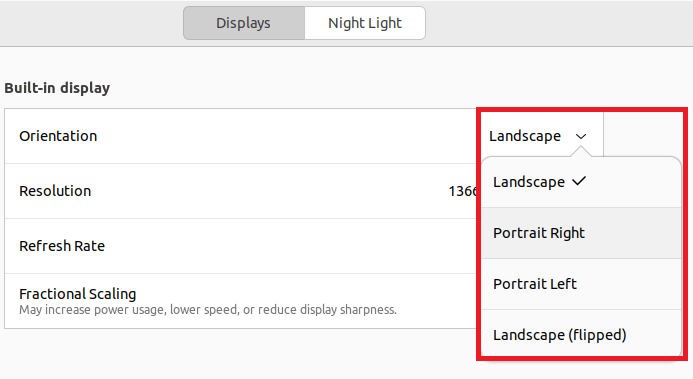
⑤ Synchronised or Extended:If the Ubuntu device is connected to two displays, the 【Display Mode】column will appear on the top. For extended displays, please select 【Join Displays】, for synchronised displays, please select 【Mirror】. In addition, you can assign to use only one display in 【Single Display】.


